 blog
5 Best Radio Programming Software for Windows 11
Last Updated: November 15, 2026
Quick Summary
The 5 best radio programming software for Windows 11 are RT Systems, CHIRP, free PC tools, offline packages, and OEM software. RT Systems is the polished paid pick with signed drivers, while CHIRP is the free open-source workhorse that works with the correct cable.
- Windows 11 enforces signed kernel-mode drivers, so cloned USB-to-serial chips often fail to install or drop the COM port.
- RT Systems supplies FTDI-chipset cables and offers phone and email tech support.
- CHIRP is free and open-source but lags on newer radio models and has a dated interface.
- Before relying on offline software, activate the license and test a full read-and-write cycle at home.
- OEM software is free with your radio, but Windows 11 compatibility varies by model and release.
Table of Contents
- What Windows 11 Changed for Radio Programming Software
- How We Evaluated These Five Options
- 1. RT Systems Radio Programming Software
- 2. CHIRP Radio Programming Software
- 3. Free Ham Radio Software for PC: What You Get and What You Give Up
- 4. Offline Radio Programming Software for Field and Club Use
- 5. OEM Manufacturer Software
- Matching Software to Your Radio Model and Cable
- Frequently Asked Questions
What Windows 11 Changed for Radio Programming Software
Windows 11 tightened driver requirements, and that single change reshaped the radio programming software landscape. The exact keyword question, which of the 5 best radio programming software for Windows 11 options actually works, now hinges less on features and more on whether the cable and driver stack survives Microsoft's signing rules. Hobbyists often blame the software when the real culprit is a counterfeit USB-to-serial chip.
Here is the short version: most older programming packages still run, but only if the USB cable carries a genuine chipset with a signed driver.
Driver Signing and USB Cable Compatibility
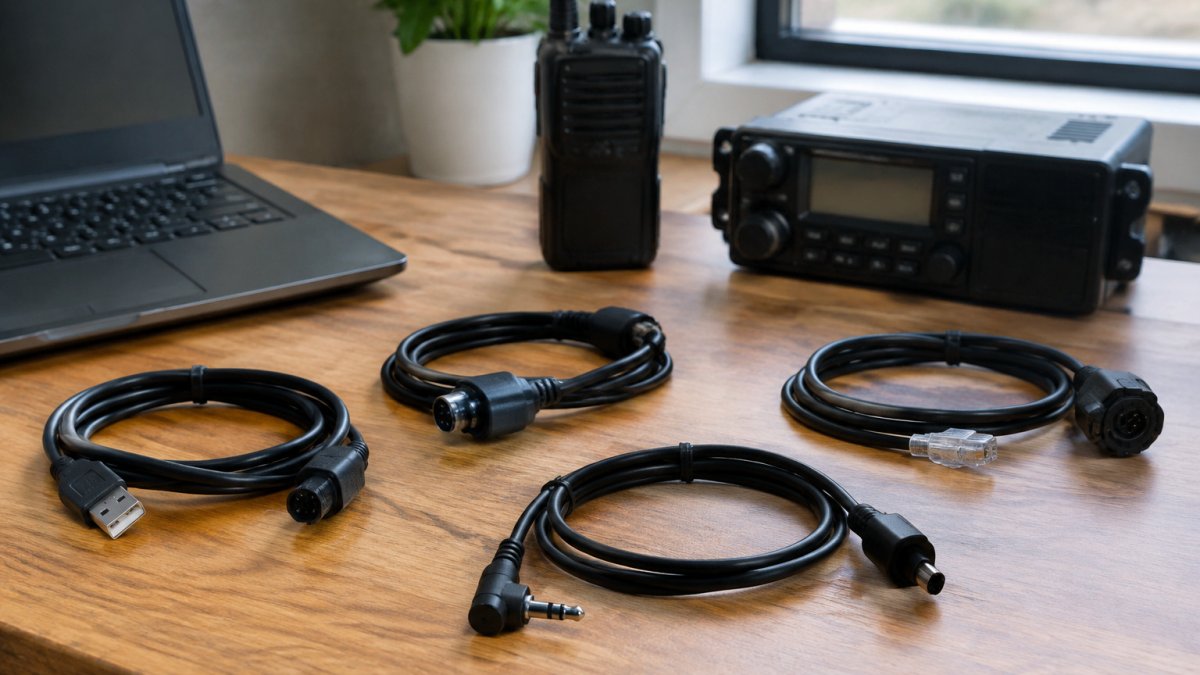
Driver signing is the make-or-break detail on Windows 11. Microsoft now enforces signed kernel-mode drivers, so cheap USB-to-serial adapters built on cloned chips often refuse to install or drop the COM port mid-transfer. A common mistake is buying a bargain cable and assuming the software is at fault.
If you are already stuck at this stage, our guide on how to fix radio programming cable driver issues walks through the step-by-step repair. A quality cable with an FTDI chipset avoids most of this pain entirely.
How We Evaluated These Five Options
We ranked each option on four things: verified Windows 11 compatibility, supported radio models, ease of use, and reliability during bulk channel transfers. Pricing and licensing terms matter too, so check each vendor's website for current figures.
Our shortlist covers the range hobbyists actually need: a polished commercial package, a free open-source workhorse, a look at what free ham radio software for PC really costs you, an offline option for field and club work, and the OEM route. Below is the quick comparison before the detail.
| Option | Windows 11 Status | Best For | Cost Model |
|---|---|---|---|
| RT Systems | Verified, signed drivers | Most hobbyists | Paid per radio |
| CHIRP | Works with correct cable | Budget users | Free, open-source |
| Free PC tools | Varies by tool | Trying before buying | Free with limits |
| Offline packages | Stable once installed | Field and club use | Paid or free |
| OEM software | Mixed, model-dependent | Single-brand owners | Free with radio |
1. RT Systems Radio Programming Software
RT Systems radio programming software is one of the options covered here. The company supplies high-quality cables with FTDI chipsets alongside its software, and its interface is designed to be easy to use for complex radio settings.
The software includes helpful frequency databases, and instructional videos are provided for setup. Tech support is available by phone and email. Pricing depends on the radio models you need, so check RT Systems' website for current prices or a quote.
2. CHIRP Radio Programming Software
CHIRP radio programming software is the free, open-source option that earned its reputation honestly. It supports a wide spread of transceivers from multiple brands, runs cross-platform, and handles memory channels, offset, and tone settings competently. For a new owner who wants to program a handful of local repeaters, CHIRP costs nothing and does the job.
CHIRP relies on your USB-to-serial adapter, and a cloned chip can cause driver problems on Windows 11. The interface also feels dated compared with commercial packages, and bulk imports of large channel lists can be fussy. It is a strong free choice, not a polished one.
Best for: Budget-conscious users with a known-good cable. Skip if: You want vendor support when something breaks.
3. Free Ham Radio Software for PC: What You Get and What You Give Up
Free ham radio software for PC is not one product; it is a category with wildly different Windows 11 behavior. The three names that come up most often are CHIRP, the manufacturer-supplied OEM packages, and a long tail of single-model utilities. Each gives up something different, and lumping them together is how hobbyists end up blaming Windows 11 for a problem that started with a cloned USB-to-serial chip.
Here is what the free tier actually delivers, tool by tool.
CHIRP. Free, open-source, and the broadest cross-brand coverage in the category. It reads and writes memory channels, offsets, tones, and (on supported models) some menu settings, and it imports and exports CSV files so you can move a channel list between radios. The catch is the cable: CHIRP talks to your radio through whatever USB-to-serial adapter you bought, and Windows 11 enforces signed kernel-mode drivers. A genuine FTDI or Silicon Labs chipset installs cleanly; a cloned Prolific or CH340 adapter may refuse to install or drop the COM port mid-transfer.
OEM packages. Free with the radio, but each manufacturer ships its own tool with its own quirks. Windows 11 compatibility varies by model and by release year, and some packages still depend on older driver stacks that require compatibility-mode workarounds. The trade-off is narrowness: an OEM tool usually programs only that brand, and sometimes only a subset of that brand's models.
Single-model utilities. Free, often excellent for one radio, and almost never updated once the model is discontinued. They are the highest-risk category on a new Windows build because there is no maintainer to patch a broken driver dependency.
What every free option gives up is the same short list: vendor support when a transfer fails, a guaranteed signed driver in the box, and a release cadence tied to new Windows builds. Updates depend on volunteers or on a manufacturer's willingness to keep an old package alive. None of that makes free tools a bad choice. It makes them a choice with known edges, and the edges show up fastest when your channel list gets large or your radio is new.
If you are weighing whether paid is worth it, our breakdown of why paid radio software beats free options covers the comparison in depth. The honest answer: free works well until your channel list, your radio count, or your patience gets large. Before you commit to any free tool, confirm three things on your own machine: the software lists your exact model, the cable uses a genuine chipset, and the driver installs without a yellow warning in Device Manager.
4. Offline Radio Programming Software for Field and Club Use
Offline radio programming software matters more than most guides admit, and the reason is mechanical rather than philosophical: the tools that fetch repeater data from the internet fail at exactly the moment you need them. Club events, travel, and emergency deployments happen where Wi-Fi does not, and a package that needs a live connection to populate a channel list is useless in a parking lot before a net.
The right offline tool stores your channel list and radio database locally, so you program on a laptop with no signal. That sounds simple, but three things have to be true before you leave the house.
The database has to be local. Some packages pull repeater listings from an online service every time you open a new file. Others cache the data after the first sync. Know which one you own. If the software offers an export or a local database file, save it to the laptop's drive rather than a network share.
The license has to be activated. Paid packages often require a one-time online activation, and some re-check periodically. Activate and confirm the license status while you still have internet, then test that the software opens and saves a file with the network adapter disabled.
The driver has to survive a reboot. Windows 11 can reassign COM port numbers when a USB-to-serial adapter is unplugged and replugged, and a driver that installed under one port number may not bind to the same port at the event. Plug the cable into the same USB port you used at home, and confirm the port number in Device Manager before you connect to the radio.
The practical workflow is a full dress rehearsal at home: install the software, activate the license, connect the cable, read the radio, edit a channel, write it back, then disconnect the network and repeat the read-and-write cycle. A common mistake is discovering a missing driver or an unregistered license at the event itself, when there is no download available and no support line open.
Offline use also changes which tool is the right pick. A package with a large local repeater database and a spreadsheet-style import is worth more in the field than a cloud-first tool with a prettier interface. If your club shares channel lists as CSV files, confirm the software imports them without a network call. Test the full connect-and-transfer cycle at home first, and keep a known-good cable and a copy of the driver installer on the laptop's drive.
5. OEM Manufacturer Software
OEM software is free with your radio, and for a single-brand owner it can be enough. The problem is that each manufacturer builds its own tool with its own quirks, and Windows 11 compatibility varies by model and release. Some OEM packages lag years behind current Windows builds, and driver signing issues are common. If you are weighing this route, our guide on why OEM radio software is difficult explains the friction before you commit.
Matching Software to Your Radio Model and Cable
The right choice comes down to your radio model and your cable, not the marketing. Check that the software lists your exact transceiver, confirm the cable uses a genuine chipset, and verify the driver installs cleanly on Windows 11 before you rely on it.
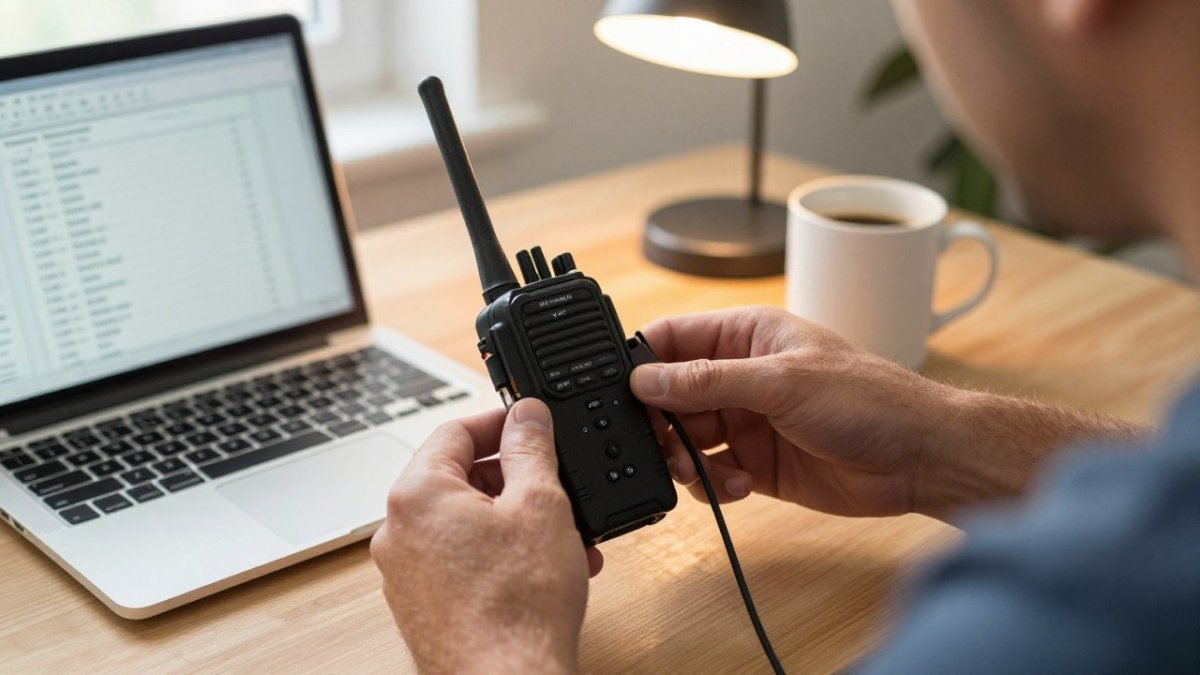
Not sure the software exists for your radio? Our guide on whether there is software for your radio answers that directly, and a full amateur radio software compatibility check confirms your model and cable combination. When in doubt, match the cable to the software first, then the radio.
Windows 11 will keep tightening driver rules, and the gap between a smooth setup and a frustrating one is usually the cable and the software behind it. RT Systems, Inc. closes that gap with signed-driver cables, per-radio software packages, spreadsheet import for large channel lists, and phone and email support when you need a human. Get started with RT Systems, Inc. and program your radio without the driver fight.
Frequently Asked Questions
Does CHIRP work with Windows 11?
Yes. CHIRP runs on Windows 11, but the experience depends on your cable. Cables built on genuine FTDI chipsets install cleanly through Windows Update, while counterfeit or older Prolific adapters often fail driver signing and never appear as a usable COM port. Check the cable first, then confirm your radio model is on CHIRP's supported list before you install anything.
Is RT Systems software compatible with Windows 11?
RT Systems offers reliable programming software for a wide range of radio brands, along with high-quality cables that use FTDI chipsets. For current compatibility with your specific radio and Windows 11, check RT Systems' website or contact its tech support by phone or email.
Can I program a radio without an internet connection?
Yes. Offline radio programming software stores your channel list and radio database locally, so you can read, edit, and write memories with no connection at all. This matters at field day sites, club events, and travel where Wi-Fi is unavailable. Download the software and any frequency updates at home first, then program radios wherever you are.
How do I choose programming software that supports my radio model?
Start with the model number, not the brand. Check the software's supported radio list for your exact transceiver, then confirm which cable it needs. Free options cover a broad range of older and budget radios; paid packages tend to add model-specific features and support for newer or advanced modes. If you own several radios, favor a package with import and export so one channel list can be reused across them.