 how-to
Is There Software for My Radio? A 2026 Guide
Table of Contents
- Yes, Software Exists for Most Radios
- Identifying Your Radio Model and What Software Works
- How to Program a Ham Radio with a Computer
- Choosing the Right Radio Programming Cable
- Radio Programming Software Troubleshooting
- What to Do If No Software Exists for Your Radio
- Firmware Updates and System Compatibility
- Conclusion
- Frequently Asked Questions
Last Updated: October 15, 2026
Yes, Software Exists for Most Radios
The short answer is yes. Most modern radios have software available, whether it's the manufacturer's original programming tool or third-party alternatives designed to make the process simpler. The real question isn't whether software exists for your radio, it's finding the right software for my radio and learning how to use it effectively.
Radio programming software bridges the gap between your radio and a computer. Instead of manually entering frequencies and settings into your radio's memory one by one, software lets you manage hundreds of channels at once, organize them into groups, and upload everything to your device in minutes.
At RT Systems, Inc., we've spent over 20 years helping radio operators find the right software for their equipment. The process starts with identifying exactly what you have.
Identifying Your Radio Model and What Software Works
Before you can find software for my radio, you need to know what you're working with. This sounds obvious, but many people don't know the difference between a Yaesu, Kenwood, Icom, or Motorola radio, or even which model they own.
Start by looking at the radio itself. Check the front panel for a brand name and model number. For handheld radios, this information is usually printed on the back or bottom.
Write down exactly what you find. Don't guess. A Yaesu FT-65R is completely different from a Yaesu FT-991A, and they need different software.
Once you have the model number, search online for "[Your Brand] [Your Model] programming software." This search will show you what's available. You'll typically find one of three scenarios:
- Official manufacturer software, The radio maker provides their own tool, often free but sometimes with limitations
- Third-party alternatives, Companies like RT Systems, Inc. create software designed to be easier and more reliable than the official version
- No software available, Older radios or specialty models sometimes have no programming tool at all
Visit the manufacturer's website first. Most brands maintain a downloads section where you can find the correct software version for your specific radio model.
How to Program a Ham Radio with a Computer
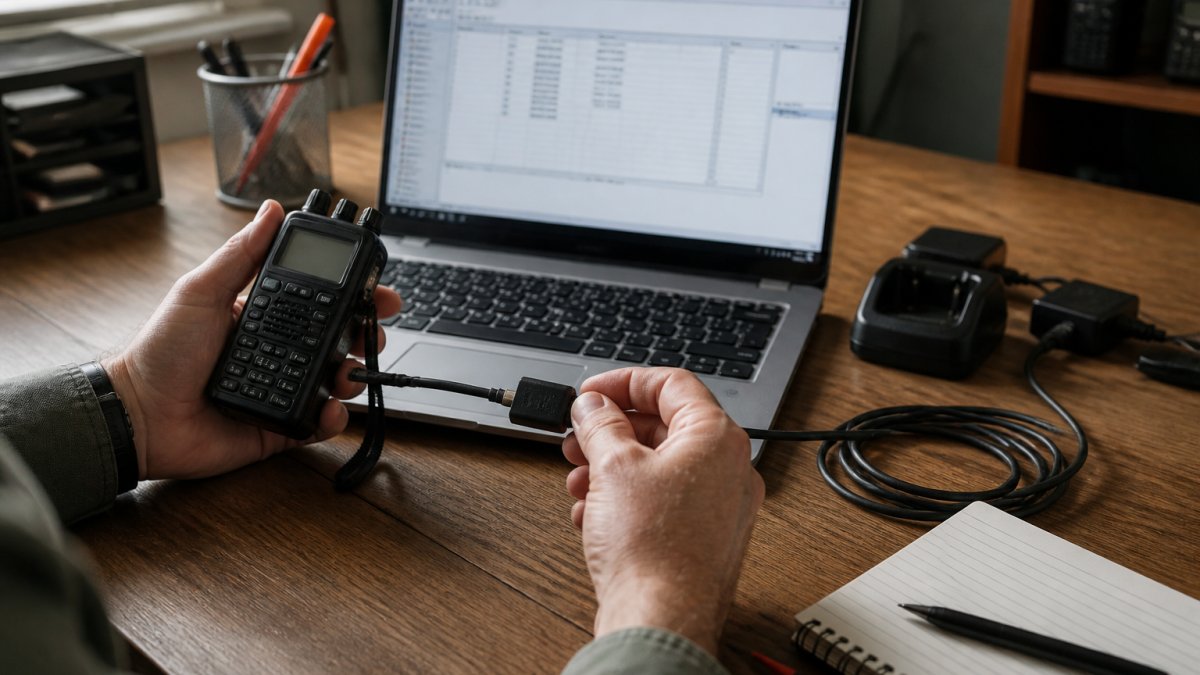
Programming a ham radio with a computer involves connecting your radio to your computer with a cable, loading the software, and transferring your channel data. The process is straightforward once you understand the basic steps.
What You'll Need Before Starting
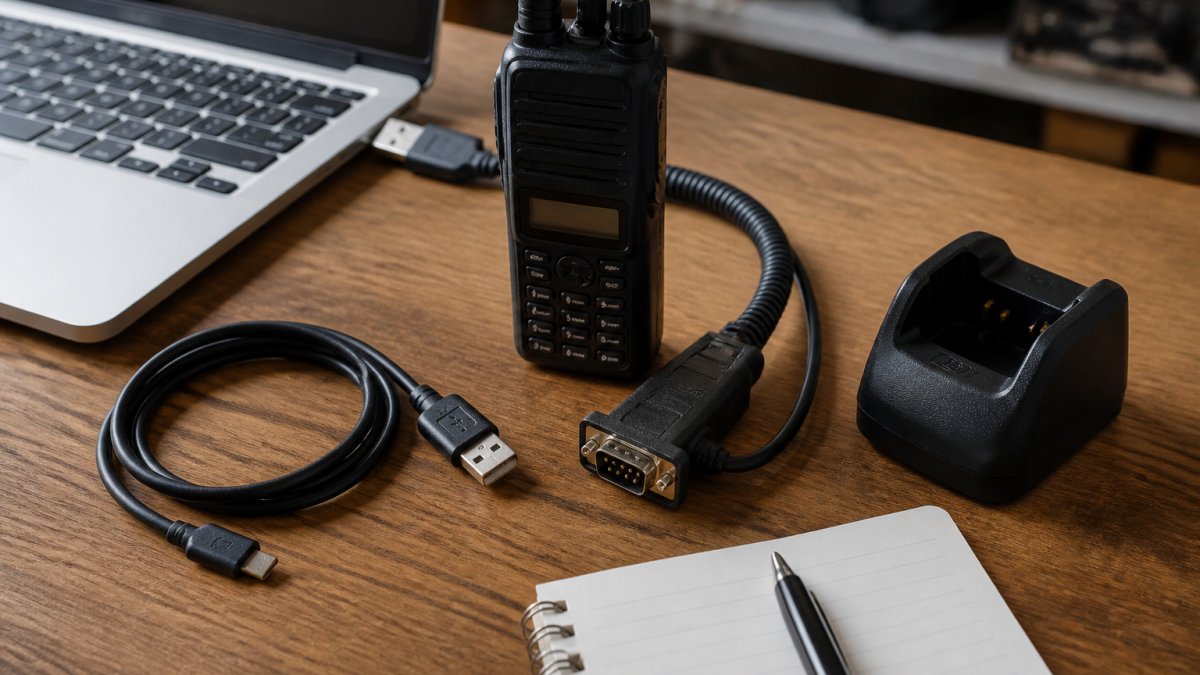
Before you begin, gather these items:
- Your radio (obviously)
- A computer running Windows or Mac (check your software requirements)
- A programming cable designed for your radio model
- The correct programming software installed on your computer
- A list of frequencies you want to program, or a file from another user
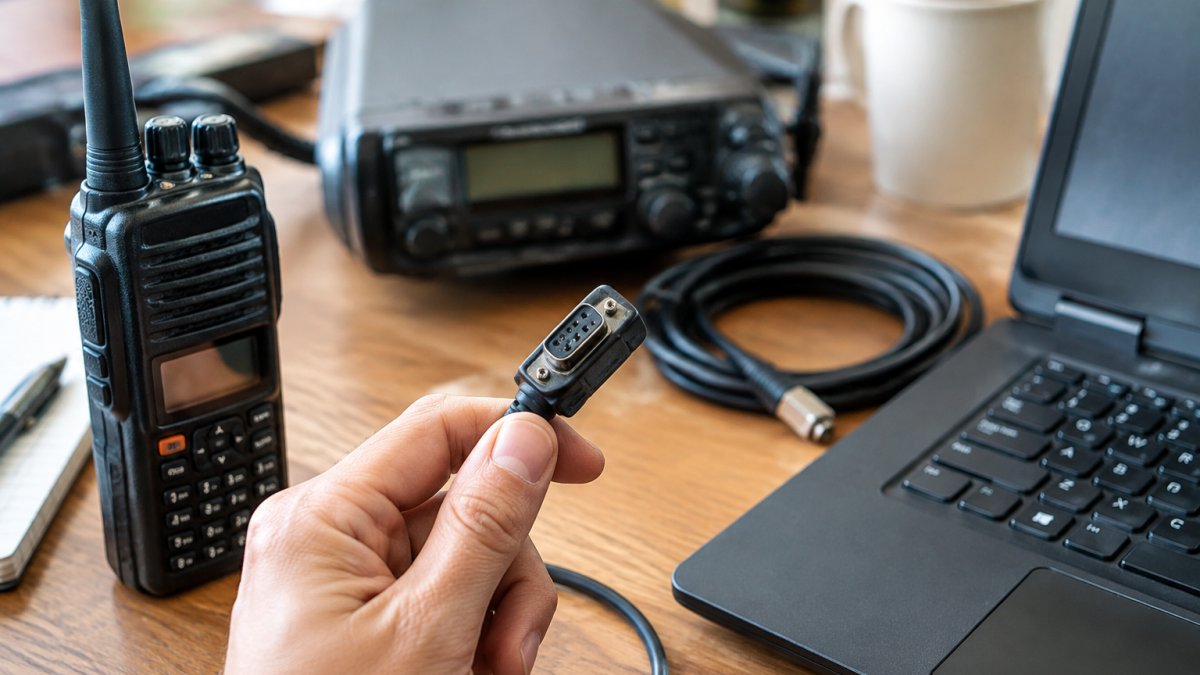
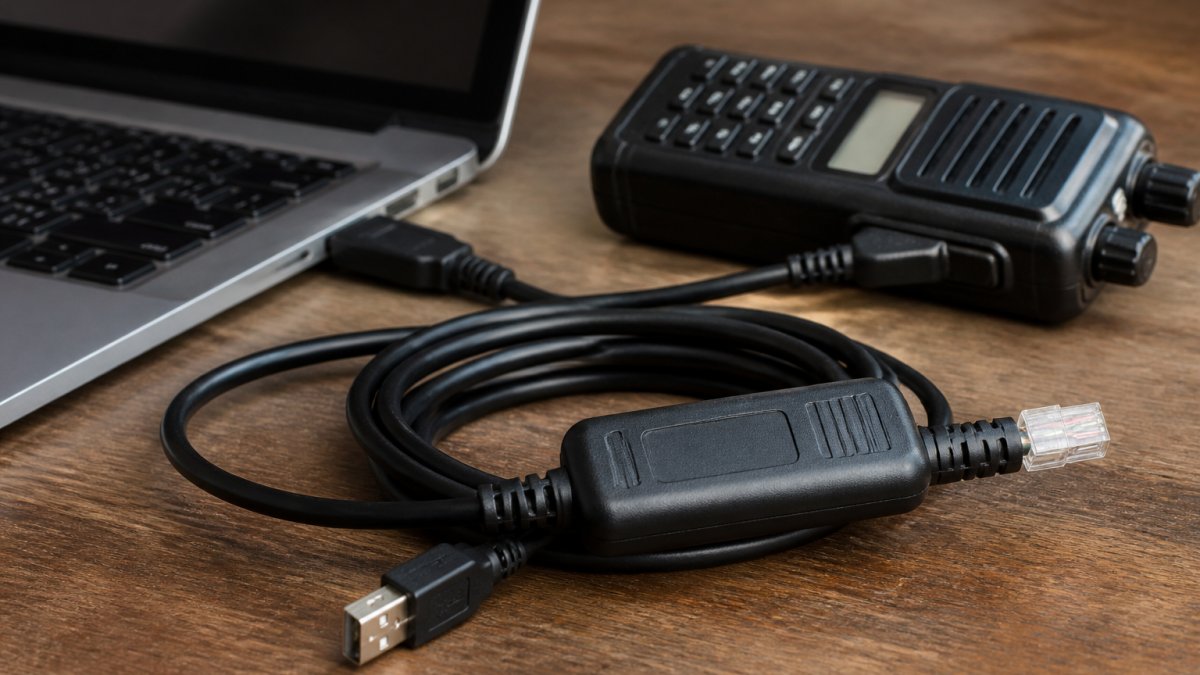
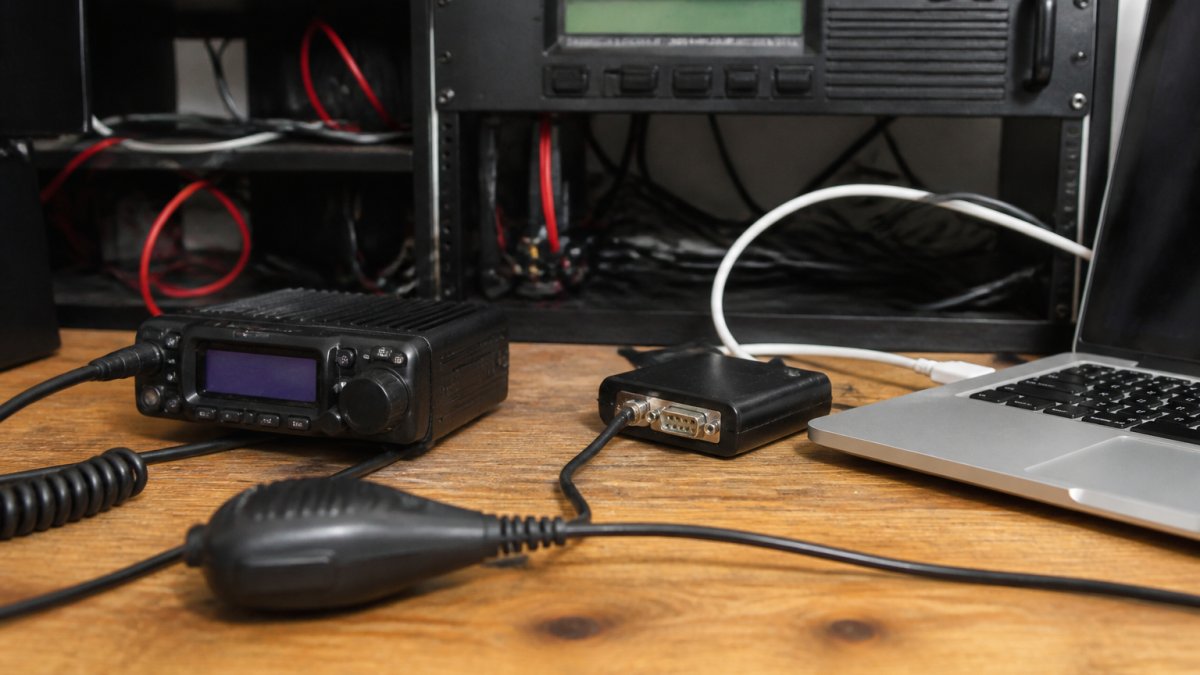
The programming cable is critical. It's not a standard USB cable, it's a specialized connector that links your radio's data port to your computer. Using the wrong cable won't work, and using a cheap or damaged cable can corrupt your radio's memory. RT Systems, Inc. manufactures high-quality cables with FTDI chipsets that ensure reliable data transfer between your radio and computer.
Step-by-Step Programming Process
Step 1: Connect Your Radio
Plug the programming cable into your radio's data port. This port is usually on the bottom or back of the radio. Then connect the USB end to your computer.
Step 2: Open Your Programming Software
Launch the software on your computer. You should see a window with options to read from or write to your radio.
Step 3: Import or Create Your Frequencies
Most programming software lets you:
- Type in frequencies manually
- Import a list from a file (CSV, Excel, or the software's native format)
- Copy frequencies from another user's file
- Use a frequency database built into the software
RT Systems, Inc. software includes helpful frequency databases, which saves time if you're programming local repeaters or common frequencies.
Step 4: Organize Your Channels
Group your frequencies into logical categories. For example:
- Local repeaters
- Simplex frequencies
- Emergency channels
- Club frequencies
- Travel frequencies
This organization makes it easier to find what you need when you're using the radio.
Step 5: Configure Settings
Depending on your radio, you may need to set:
- Power level (high, medium, low)
- Transmit and receive tones (CTCSS or DCS)
- Offset direction and amount (for repeater frequencies)
- Skip flags (channels you don't want to access)
- Display names for each channel
Step 6: Write to Your Radio
Once everything is configured, use the software's "Write" function to upload the data to your radio.
Step 7: Verify Your Channels
After the write completes, test a few channels on your radio to make sure they work. Listen on a simplex frequency first to confirm you can receive.
Choosing the Right Radio Programming Cable
The programming cable is the physical link between your radio and computer. A bad cable causes read errors, write failures, or corrupted data. A good cable works reliably for years.
Not all cables are the same. Some use old chipsets that don't work with modern operating systems. Others have loose connectors that fail after a few uses.
When choosing a cable, match it exactly to your radio model. A cable for a Yaesu radio won't work with a Kenwood radio, even if the connector looks similar. Check your software documentation or the cable manufacturer's specifications to confirm compatibility.
If you're buying a used cable, test it before relying on it for important programming work. A $15 cable that fails mid-write can corrupt your radio's memory and leave you unable to use the radio until you reprogram it.
Radio Programming Software Troubleshooting
Problems happen. Your software might not recognize your radio, the write might fail, or your channels might not appear after programming. Most issues have simple fixes.
Radio Not Recognized
If your software says "No Radio Found," try these steps:
- Disconnect and reconnect the cable
- Try a different USB port on your computer
- Restart your computer
- Check that the radio is powered on
- Verify the correct software is installed for your radio model
- Install or update the FTDI driver on your computer (this is often the real issue)
Write Failures
If the write process stops or fails:
- Do not interrupt it again, wait for it to complete
- Try the write a second time from the beginning
- Read the current data from your radio first (this sometimes fixes connection issues)
- Use a different USB cable if possible
- Check your radio's battery level, low batteries can cause failures
Channels Don't Appear After Writing
If you wrote data successfully but the channels don't show up on your radio:
- Check that your radio is set to the correct bank or zone
- Verify that you didn't accidentally mark channels as "skip"
- Try reading the radio again to see if the data is actually there
- Reset your radio to factory settings and reprogram (last resort)
Software Crashes
If the software freezes or crashes:
- Close and reopen it
- Disconnect the radio before restarting
- Make sure your computer meets the software's system requirements
- Check for software updates from the manufacturer or RT Systems, Inc.
What to Do If No Software Exists for Your Radio
Some radios, especially older models or specialty equipment, have no programming software available. This doesn't mean you can't use the radio. It means you'll program it manually.
Manual programming means entering frequencies directly into the radio using its keypad and menu system. For a radio with 10 channels, this is tolerable. For a radio with 200 memory slots, it's tedious but doable. For a radio with 1,000 slots, it's impractical.
If no software exists for your radio, consider these options:
- Check if a third-party software maker supports it (sometimes they do even if the manufacturer doesn't)
- Look for user-created files or frequency lists online that you can reference while programming manually
- Ask your local radio club if anyone has software or files for your model
- Consider upgrading to a newer radio that has software support
For some specialty radios like DMR (Digital Mobile Radio) equipment or older business radios, the manufacturer may offer software but require you to contact a dealer. This is more common than you'd think, and dealers sometimes provide the software free or for a small fee.
Firmware Updates and System Compatibility
Firmware is different from programming software. Firmware is the operating system inside your radio, the code that controls how the radio functions. Programming software is the tool you use to manage frequencies and settings.
Some radios receive firmware updates from the manufacturer. These updates fix bugs, add features, or improve performance. Others never receive updates because the manufacturer stopped supporting them years ago.
To check if your radio has firmware updates available:
- Visit the manufacturer's website and look for downloads or support
- Search "[Your Radio Model] firmware update" online
- Contact the manufacturer directly
- Ask your radio dealer if updates are available
Firmware updates typically require a computer connection, just like programming. You'll use a cable and software to upload the new firmware to your radio.
Before updating firmware:
- Fully charge your radio's battery
- Use a stable, wired internet connection (not WiFi)
- Close all other software on your computer
- Read the manufacturer's instructions completely before starting
- Back up your current channels before updating (in case you need to reset)
Not all radios need or receive firmware updates. Many radios from 2010 or earlier have no updates available. This doesn't make them obsolete, it just means they work as they were originally designed.
Conclusion
Software for your radio absolutely exists, whether it's official manufacturer software or a third-party alternative. The key is identifying your exact radio model and finding the right tool for it.
The process of programming a radio with a computer is straightforward: connect, read, configure, and write. What makes it frustrating for many people is using the wrong cable, incompatible software, or outdated tools. RT Systems, Inc. eliminates that frustration by providing reliable programming software and high-quality cables designed specifically for your radio model. Our solutions simplify the complex process of managing radio memories and settings, saving you hours compared to manual entry or struggling with manufacturer software. Learn more about radio programming best practices and explore how RT Systems, Inc. can make your radio programming faster and more reliable.
Frequently Asked Questions
Is radio programming software free?
Some free options exist for certain radio models, but they vary widely in features and ease of use. Official manufacturer software is often free but can be difficult to navigate. Third-party solutions offer more intuitive interfaces and broader model support, though pricing depends on the vendor and features. Compare what each option offers for your specific radio model before deciding.
How do I find software that works with my radio model?
Start by identifying your radio's exact brand and model number (usually on the device label or in the manual). Visit the manufacturer's website to check for official programming software. Search online forums and amateur radio communities for user recommendations on radio programming software by model. Verify compatibility before purchasing or downloading to ensure the software supports your specific device.
Do I need a special cable to program a radio with a computer?
Yes. A radio programming cable is essential for communication between your radio and computer. Quality cables use FTDI chipsets to ensure reliable data transfer. The specific cable type depends on your radio model's connector. Using a substandard or incompatible cable can cause programming failures, data loss, or connection issues. Invest in a cable designed for your radio model.
What should I do if my radio won't connect to programming software?
First, verify the cable is properly connected and compatible with your radio model. Check that your computer recognizes the cable as a serial device in system settings. Ensure you're using the correct software version for your radio. Restart both the radio and computer, then try again. If problems persist, consult radio programming software troubleshooting guides or contact the software vendor's technical support team.
Whether you're programming a single radio or managing frequencies across multiple devices, the right software and cable make the difference between a smooth process and a headache. Start by identifying your radio, find the correct software, invest in a quality cable, and you'll be programming channels reliably for years to come. RT Systems, Inc. has supported radio operators for over two decades, let us help you get the most from your equipment.