 how-to
How Do You Fix Serial Port Communication Errors?
Last Updated: November 4, 2026
Quick Summary
Most serial port errors trace back to a settings mismatch, not broken hardware, so start by matching baud rate, data bits, stop bits, parity, and flow control on both devices. Change one setting at a time and test after each change. If settings match, check cables, pinouts, and COM port conflicts.
- Both devices must match baud rate exactly, such as 9600 bps on each end.
- A null modem cable crosses pins 2 and 3 for device-to-device links.
- Windows allows only one program to use a COM port at a time.
- FTDI chipsets are the most reliable for radio programming adapters.
- A loopback test shows whether your port and cable are working.
Table of Contents
- Start With Baud Rate, Parity, and Flow Control Settings
- Check Cables, Pinouts, and Null Modem Wiring
- Resolve COM Port Conflicts in Device Manager
- How to Fix Radio Driver Errors on Windows
- USB to Serial Adapter Troubleshooting: Chipsets, Latency, and Power
- COM Port Access Denied on Windows 11: Causes and Fixes
- Test the Link With a Loopback Adapter and Terminal Emulator
- Program Your Radio With a Cable You Can Trust
- Frequently Asked Questions
Start With Baud Rate, Parity, and Flow Control Settings
Most serial port errors trace back to a settings mismatch, not broken hardware. When a radio and a computer disagree on baud rate, data bits, stop bits, or parity, every byte gets garbled. This is one of the most common causes of failed connections.
Serial communication is the process of sending data one bit at a time over a single wire, and both ends must agree on the exact timing and format of those bits.
Here is what to check first:
- Baud rate: Both devices must match exactly. A radio set to 9600 bps will not talk to software set to 4800 bps.
- Data bits: Almost always 8. Older radios sometimes use 7.
- Stop bits: Usually 1. Some configurations need 2.
- Parity: Most ham radios use None. Check your radio's manual.
- Flow control: Try None first, then hardware (RTS/CTS), then XON/XOFF.
Change one setting at a time. Test after each change. This slow approach beats changing everything at once and guessing.
Here are the serial settings to verify first, since a mismatch is the most common cause of failed connections.
| Setting | Typical value | What to check |
|---|---|---|
| Baud rate | 9600 bps example | Both devices must match exactly |
| Data bits | Almost always 8 | Older radios sometimes use 7 |
| Stop bits | Usually 1 | Some configurations need 2 |
| Parity | Most ham radios use None | Check your radio's manual |
| Flow control | Try None first | Then hardware (RTS/CTS), then XON/XOFF |
Check Cables, Pinouts, and Null Modem Wiring
Cable problems cause a huge share of serial port errors, and they are easy to rule out. Start by checking the physical connection at both ends.
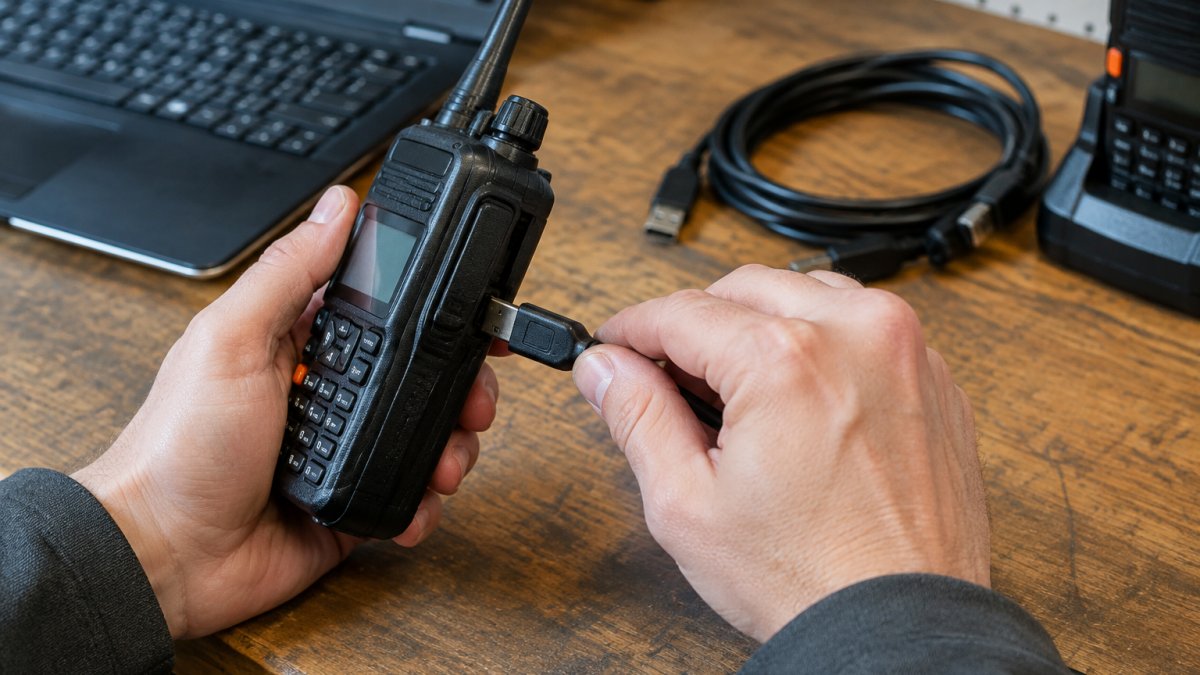
Look for bent pins, loose connectors, and worn cable ends. Then verify your wiring:
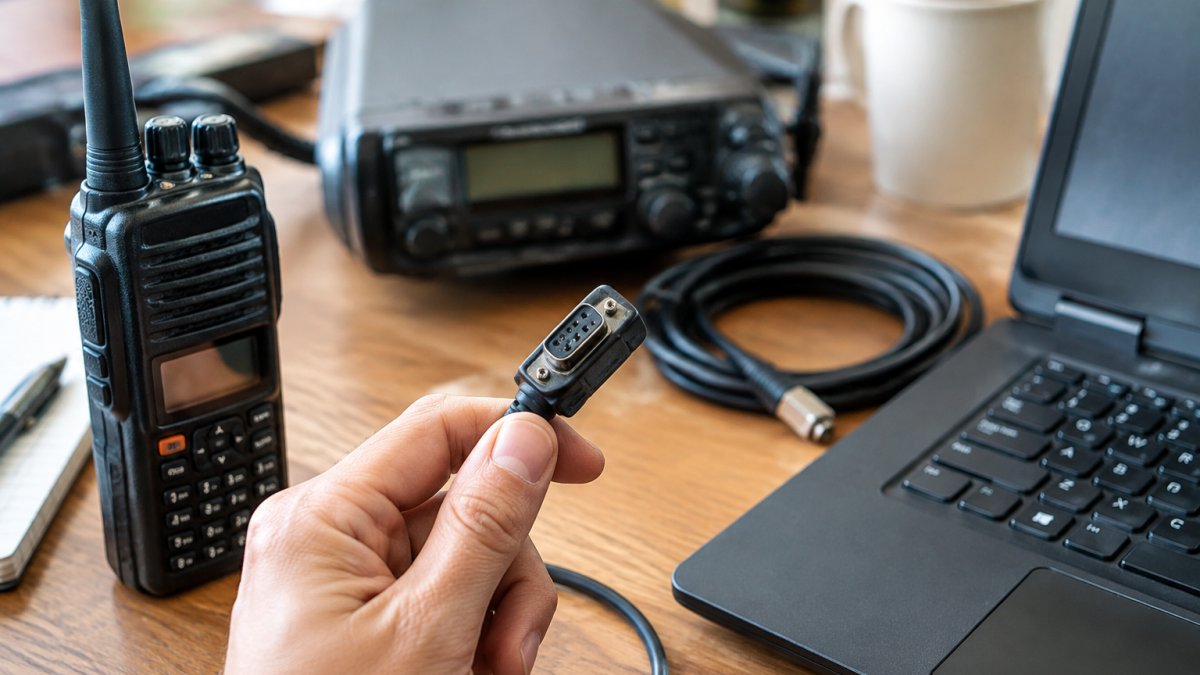
- Straight-through cable: Connects pins 2 to 2 and 3 to 3. Used for radio-to-computer links.
- Null modem cable: Crosses pins 2 and 3. Used for device-to-device links.
- Pinout configuration: Confirm your cable matches your radio's data port. A wrong pinout can send signals to the wrong pins.
If you are diagnosing a stubborn wiring problem, our troubleshooting radio cable connection issues guide walks through the full cable and wiring check step by step.
Resolve COM Port Conflicts in Device Manager
COM port conflicts happen when two devices claim the same port. The fix lives in Device Manager.
Open Device Manager and expand "Ports (COM & LPT)." Look for warning icons or duplicate port numbers. A device with a yellow triangle has a driver conflict.
To resolve it:
- Right-click the affected port and choose Properties.
- Check the "Port Settings" tab for the assigned COM number.
- Click Advanced and pick an unused port number.
- Unplug other serial devices to isolate the conflict.
- Restart and recheck.
How to Fix Radio Driver Errors on Windows
Radio driver errors show up as missing ports, "device not recognized" messages, or software that cannot see the radio at all. The fix starts with the driver.
Open Device Manager and check for unknown devices. If your radio or adapter shows a warning, reinstall the driver. Uninstall the old one first, then reinstall and reboot.
A common mistake is leaving old driver files behind. Windows can load the wrong one. Use the "Uninstall device" option and check "Delete the driver software" before reinstalling.
For a full walkthrough of driver-specific fixes, see our step-by-step radio driver error guide. It covers each error type and the exact repair sequence.
USB to Serial Adapter Troubleshooting: Chipsets, Latency, and Power
USB-to-serial adapters introduce their own failure modes. Three things matter most: chipset, latency, and power.
Chipset: The adapter's chipset determines driver quality. FTDI chipsets are the most reliable for radio programming. Cheap adapters with unmarked chips often fail or drop connections.
Latency: USB adapters add delay. In Device Manager, open the adapter's Properties, go to Advanced, and lower the latency timer if your software is timing out.
Power: Some radios draw power from the port. A weak USB port can cause dropouts. Try a powered USB hub or a different port.
Adapter problems often look like radio problems, so test the adapter on its own before blaming the radio. Our radio programming cable driver guide covers chipset and driver issues in depth.
COM Port Access Denied on Windows 11: Causes and Fixes
COM port access denied errors on Windows 11 usually mean another program is holding the port open. Windows allows only one program to use a COM port at a time.
Common causes:
- Another terminal or programming app is still running in the background.
- A driver conflict is locking the port.
- Permissions are blocking access.
Fixes to try, in order:
- Close every program that might use the port, then reopen yours.
- Restart the computer to release locked ports.
- Run your software as administrator.
- Reinstall the driver if the port stays locked.
If the error persists, check Task Manager for hidden processes holding the port. Some apps stay open after you close the window.
Test the Link With a Loopback Adapter and Terminal Emulator
A loopback test can help show whether your port and cable are working before you change radio settings.
Connect a loopback adapter to the cable end, then open a terminal emulator. Type characters and watch for them to echo back. If they return, the port and cable are good. If nothing returns, the fault is in the hardware chain.
A terminal emulator also lets you send raw commands and watch responses. This is advanced protocol debugging: you see exactly what the radio sends back, byte for byte.
For deeper checks, a port monitor can log traffic. On modern systems, you can also script these tests with PowerShell to run repeated connection checks automatically.
Program Your Radio With a Cable You Can Trust
The most reliable fix for serial port errors is to remove the weak link: the cable. A faulty or mismatched cable causes errors that no setting change will solve.
Before you buy or trust a cable, it helps to understand why radio programming cables fail. Most failures come from cheap chipsets, bad pinouts, or worn connectors.
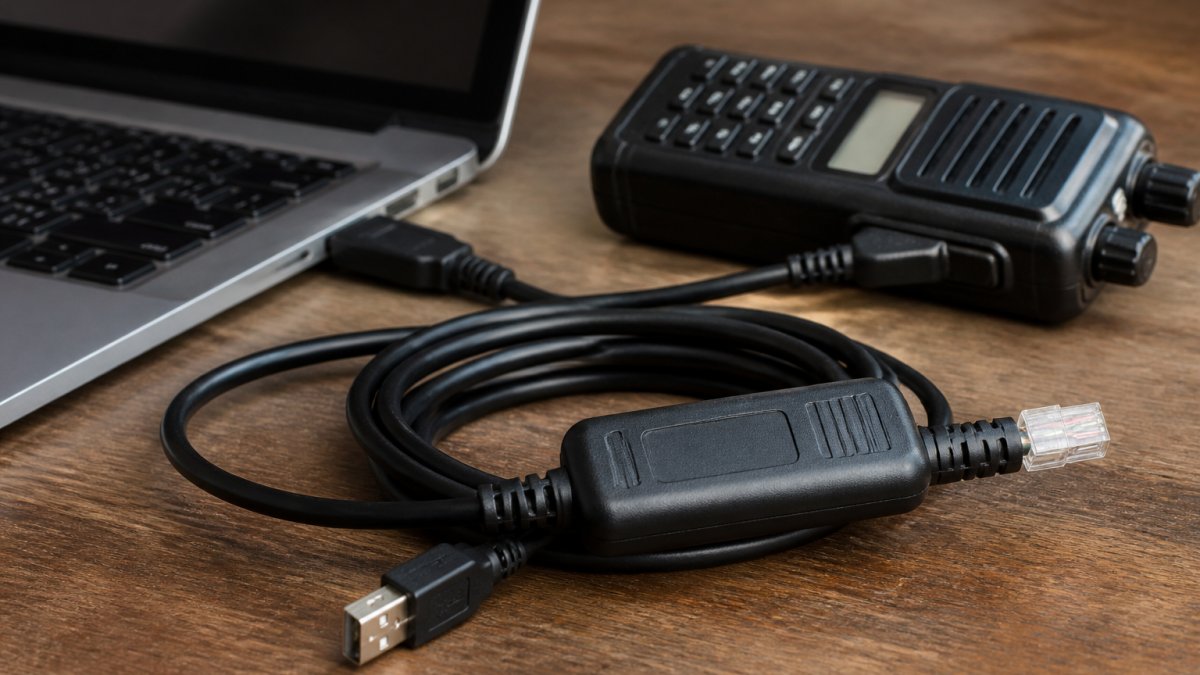
RT Systems offers programming cables with FTDI chipsets for reliable data transfer between your computer and radio. Our software is designed to simplify memory and settings management. Tech support is available by phone and email, and setup instructional videos are provided.
If you are ready to choose, our guide on how to choose the best amateur radio programming cables helps you match a cable to your radio.
Frequently Asked Questions
What causes a serial port opening error when I try to program my radio?
Most serial port errors come from a mismatch between software settings and the device: wrong baud rate, parity, or flow control, a COM port number that changed after a driver update, or another program holding the port open. Check Device Manager first to confirm the port exists and shows no warning icon, then match the baud rate and data bits in your programming software to the radio's requirements. If the port opens but data fails, suspect the cable or adapter chipset.
How do I fix radio driver errors caused by a USB-to-serial adapter?
Open Device Manager, expand Ports (COM & LPT), and look for a device with a yellow warning triangle or an entry under Other Devices. Right-click and choose Update driver, or uninstall the device and replug the cable so Windows reinstalls it. Avoid generic adapters with unmarked chipsets, since driver conflicts and dropped connections can occur with them.
Why do I get COM port access denied on Windows 11?
Access denied usually means another application already has the port open. Close radio programming software, terminal emulators, logging tools, and any background sync utilities, then retry. If the error persists, check that your user account has permission to use the device, run the programming software as administrator once to test, and confirm no virtual COM port service is holding the handle. A reboot clears stale handles left by a crashed program.
How can I test whether my serial cable or adapter is faulty?
Run a loopback test: fit a loopback plug or bridge pins 2 and 3 on the connector, open a terminal emulator, and type characters. If they echo back, the port and adapter are working and the problem is in the radio-side cable or settings. You can also watch the transmit and receive lines with a port monitor.
Stop losing hours to connection errors and start programming with confidence. RT Systems gives you reliable FTDI-based cables, easy-to-use software, and support from people who know radios. Get started with RT Systems, Inc. and program your radio without the frustration.