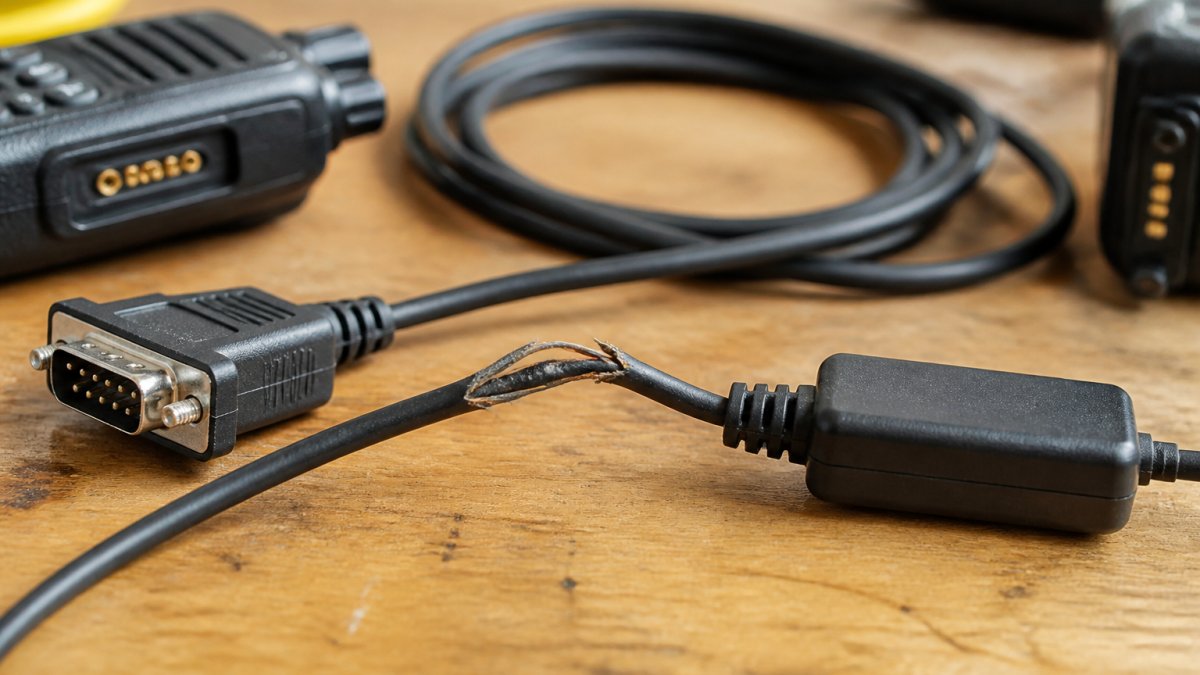
 how-to
Why Radio Programming Cables Fail: 7 Root Causes
Table of Contents
- Why Radio Programming Cables Fail: The Core Issues
- How to Fix Radio Driver Errors That Block Cable Detection
- When Your Radio Programming Cable Is Not Recognized
- Corrosion, Pin Oxidation, and Cable Degradation
- Counterfeit Chipsets and Low-Quality Components
- Best Practices for Radio Programming to Prevent Cable Failure
- Firmware Updates and Driver Rollback Solutions
- Frequently Asked Questions
Last Updated: September 28, 2026
Why Radio Programming Cables Fail: The Core Issues
Radio programming cables fail due to a combination of hardware, software, and user environment factors that interact in ways most people don't anticipate.
When a cable stops working, the culprit is rarely obvious. You might blame the cable manufacturer. But investigation into structural failures, like the case analyzed by University of Central Florida's research on equipment failure patterns, reveals that secondary failures cascade from initial issues elsewhere in the system. The cable becomes the visible victim of problems that started upstream.
Most cable failures stem from one of seven root causes: driver problems, physical connection issues, corrosion, counterfeit hardware, power status conflicts, COM port misconfiguration, or firmware incompatibility. Understanding these causes transforms troubleshooting from guesswork into a systematic process.
How to Fix Radio Driver Errors That Block Cable Detection
Driver errors are the most common reason radio programming cables fail to connect. Your operating system doesn't recognize the cable because the correct driver isn't installed, is corrupted, or conflicts with another driver. The fix starts in Device Manager.
Checking Device Manager for Missing or Corrupt Drivers
Open Device Manager and look for your cable under "Ports (COM & LPT)." If you see a yellow exclamation mark, the driver is corrupt or missing. Right-click the device and select "Update driver," then choose "Browse my computer for driver software." If that fails, uninstall the device completely, disconnect the cable, restart your computer, and reconnect it. This forces Windows to install the driver fresh and resolves most detection issues.
Installing the Correct FTDI Chipset Driver
Most quality radio programming cables use FTDI chipsets for serial-to-USB conversion. Visit the FTDI website and download the driver package for your Windows version (32-bit or 64-bit), run the installer, and restart your computer. After installation, connect your cable and check Device Manager. The cable should appear under "Ports (COM & LPT)" with a specific COM port number and no error marks. If errors persist, the problem is likely physical connection or hardware damage.
OS-Specific Permission Conflicts on Windows and macOS
Windows and macOS handle serial port permissions differently. On macOS, your user account may not have permission to access the serial port that the cable uses.
On macOS, open Terminal and run: ls -la /dev/tty.* This shows all serial ports your system recognizes. If your cable's port appears but your programming software can't access it, the issue is permissions.
Add your user account to the "dialout" group on macOS systems. This grants permission to access serial devices without requiring administrator access every time.
On Windows, permission conflicts are less common but still possible if your user account lacks "Device Installation" rights. Run your programming software as administrator to bypass permission restrictions temporarily. If that works, adjust your user account permissions in Windows settings.
When Your Radio Programming Cable Is Not Recognized
A cable that isn't recognized might be physically present but not communicating. This section covers the physical diagnostics most people skip.
Physical Connection and Socket Alignment Checks
Inspect the USB connector on your cable for bent pins, discoloration, or corrosion. Use a flashlight to check inside your computer's USB port for cleanliness. Clean the USB connector with isopropyl alcohol and a soft cloth, then try a different USB port. Test the cable with a different computer if possible. If the cable works elsewhere, your original computer's USB ports or drivers are the problem. If your radio connects with a different cable, your original cable is damaged.
Testing Cable Continuity and Identifying Counterfeit Hardware
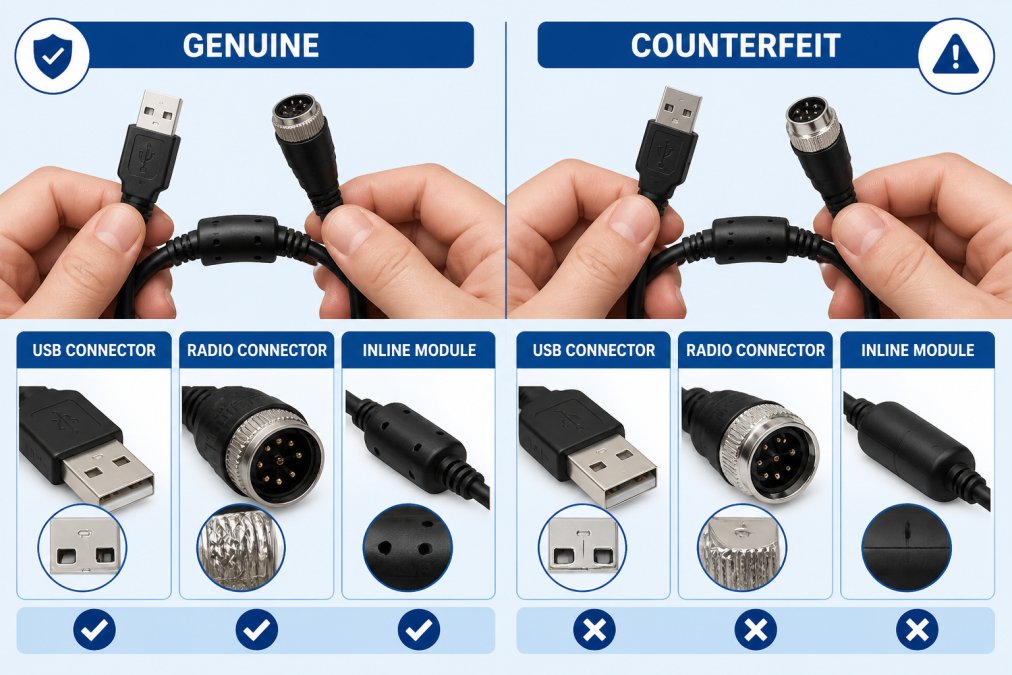
Cable continuity testing requires a multimeter set to continuity mode. Touch the probes to the USB connector pins. A good cable shows continuity (beeping or very low resistance); a broken cable shows none. This test identifies internal breaks invisible from outside.
Counterfeit cables are a real problem. According to Buy Two Way Radios analysis of cable failures, many programming cable failures stem from counterfeit chips in low-cost cables sold by overseas resellers. These chips look identical to genuine FTDI chips but fail under normal use.
Genuine FTDI chips have specific markings. The label includes "FTDI" clearly printed, a part number starting with "FT," and a date code. Counterfeit chips often have blurry printing, misspelled text, or no date code at all.
Buy cables from established retailers. Cheap cables under ten dollars almost always contain counterfeit chips. Quality cables cost more because they contain genuine components.
Corrosion, Pin Oxidation, and Cable Degradation
Corrosion kills cables silently. Examine the metal contacts inside your USB connector with a flashlight. Shiny gold or silver means the cable is clean; green, white, or black discoloration means corrosion. Clean corroded contacts with white vinegar and a soft brass brush, scrub for 30 seconds, rinse with distilled water, and dry completely. For heavy corrosion, replacement is faster than restoration. Store your cable in a dry place and use a waterproof case during travel. Cable degradation accelerates in harsh environments, so plan for more frequent replacement in coastal or humid areas.
OS-Specific Permission Conflicts That Block Cable Detection
Even a physically perfect cable can fail to connect if your operating system denies permission to access the serial port. This is a modern security issue that most troubleshooting guides overlook, but it's a common failure point on Windows 11 and macOS systems.
On Windows 11, unsigned or outdated drivers may be blocked by Windows Driver Signature Enforcement. If your cable uses a driver that isn't signed by Microsoft, Windows 11 may refuse to load it, even if the driver is legitimate. You'll see the cable appear in Device Manager with a yellow exclamation mark or error code 52 ("Windows cannot verify the digital signature of this driver").
To resolve this, download the latest FTDI driver directly from the FTDI website (ftdichip.com). The current FTDI driver package is digitally signed and compatible with Windows 11. Install it, restart your computer, and reconnect the cable. If the error persists, you may need to disable Driver Signature Enforcement temporarily (a risky step, only do this if you trust the driver source). Alternatively, run your programming software as Administrator. Right-click the software icon and select "Run as administrator." This grants the software permission to access the serial port even if the driver has signature issues.
On macOS, your user account may not have permission to access the serial port that the cable uses.
Counterfeit Chipsets and Low-Quality Components
The chipset converts serial data from your radio into USB data your computer understands. Genuine FTDI chipsets are engineered for reliability and have ongoing driver support. Counterfeit chipsets cut corners and degrade over time. Intermittent behavior, working sometimes and failing other times, is the hallmark of a counterfeit chip, while genuinely broken cables fail consistently.
Best Practices for Radio Programming to Prevent Cable Failure
Prevention is cheaper than replacement. Simple habits extend cable life dramatically.
Proper Radio Power Status and Software Compatibility
Always turn your radio on before connecting the cable, as some radios draw power through the programming cable. Check your radio's manual for power requirements and required mode during programming. Match your programming software version to your radio model. Test your setup with a simple read operation first to verify the connection is solid before writing any new data.
COM Port Configuration and Baud Rate Settings
Your programming software must use the correct COM port and baud rate. The COM port is the address Windows assigns to your cable. The baud rate is the data transmission speed.
| Configuration Element | Common Setting | What It Does |
|---|---|---|
| COM Port | COM3 or COM4 | Identifies which USB port your cable uses |
| Baud Rate | 9600 baud | Controls data transmission speed |
| Data Bits | 8 bits | Standard for modern radios |
| Stop Bits | 1 bit | Signals end of data transmission |
| Parity | None | Error checking method |
Firmware Updates and Driver Rollback Solutions
Firmware is the software inside your radio. Driver is the software on your computer. Both need to work together.
Frequently Asked Questions
What are the common causes of radio programming cable failure?
Radio programming cables fail for multiple reasons: counterfeit chipsets in low-cost cables, corrosion and pin oxidation from moisture exposure, incorrect COM port configuration in software, missing or corrupt device drivers, USB interface issues, and incompatible firmware versions. Physical damage from improper storage or repeated bending also degrades signal integrity. Many failures attributed to the cable itself are actually driver or software compatibility issues rather than hardware defects.
How can I tell if my programming cable is defective or if it's a driver issue?
Test your cable's physical integrity first: inspect connectors for corrosion or bent pins, check cable continuity with a multimeter if possible, and try the cable on a different computer to isolate whether the problem follows the cable. Then verify your device driver installation in Device Manager, look for unknown devices or yellow warning icons. If the cable works on another system but not yours, the issue is driver-related. If it fails on all systems, the cable hardware is likely defective. Visual inspection can also reveal counterfeit indicators like poor labeling or mismatched connector quality.
Why should I use quality cables with proper FTDI chipsets instead of cheap alternatives?
Counterfeit chips in sub-$10 cables from overseas resellers cause intermittent connections, data corruption during programming, and signal integrity problems. Quality cables with genuine FTDI chipsets provide reliable serial-to-USB conversion, stable handshake protocols, and consistent baud rate performance. Many programming failures aren't due to cable design but to counterfeit components that fail under real-world use. Investing in certified cables eliminates troubleshooting time and ensures your radio configuration data transfers correctly without loss or corruption.
What maintenance prevents radio programming cable failure?
Store cables in a dry environment away from moisture to prevent pin oxidation and corrosion. Avoid repeatedly bending or coiling cables tightly, which damages internal conductors. Keep connectors clean and free from dust using compressed air or a soft brush. Check socket alignment before connecting to your radio, misaligned connections create intermittent failures. Test cable continuity periodically, especially if you notice connection drops. Use surge protection to guard against voltage spikes. Replace cables showing visible corrosion, discoloration, or intermittent connection patterns before they cause data transmission errors.