 blog
How to Choose the Best Amateur Radio Programming Cables 2026
Last Updated: October 30, 2026
Quick Summary
The best amateur radio programming cables in 2026 are matched to your exact radio's connector, built around a genuine USB-to-serial chipset, and backed by software that supports your model. That combination, not brand hype, decides whether programming cables work on the first plug-in or become another drawer ornament.
- Cables built around FTDI chipsets are designed to install cleanly and hold a stable COM port.
- RT Systems assembles and individually tests its USB programming and control cables from radio to computer during production.
- Verify compatibility by checking the radio's manual, the cable maker's model list, and the software's supported models.
- Driver errors on Windows 11 and 10 usually trace to a missing driver, a COM port conflict, or an unrecognized chip.
- Unplugging the cable during a memory write can leave a radio with a partially written channel list.
Table of Contents
- Best Amateur Radio Programming Cables 2026: What Actually Matters
- USB Chipset and Driver Differences: Why Cheap Cables Fail
- Cable Compatibility by Exact Radio Model and Connector
- How to Fix Radio Driver Errors on Windows 11 and 10
- Best Ham Radio Programming Software 2026: What to Pair With Your Cable
- Cable-Only vs. Cable-and-Software Bundles: Which Saves More Time
- Programming Cable Troubleshooting: COM Port, Drivers, and Radio Protection
- Match Your Radio to the Right Programming Cable
- Frequently Asked Questions
Best Amateur Radio Programming Cables 2026: What Actually Matters
The best amateur radio programming cables in 2026 are the ones matched to your exact radio's connector, built around a genuine USB-to-serial chipset, and backed by software that knows your model.
At RT Systems, Inc., we have more than 20 years of experience with programming cables and software, so we know where cheap cables fall short.
Here is the uncomfortable truth most buying guides skip: a programming cable is not a passive wire.
USB Chipset and Driver Differences: Why Cheap Cables Fail
The chipset inside a programming cable is a major factor in reliability. Cables built around FTDI chipsets are designed to install cleanly and hold a stable COM port.
RT Systems' USB programming and control cable documentation notes that its cables are assembled and individually tested from radio to computer during production.
A common mistake is buying the cheapest cable on a marketplace and blaming the radio when it will not connect. For a deeper breakdown, see why radio programming cables fail.
Cable Compatibility by Exact Radio Model and Connector
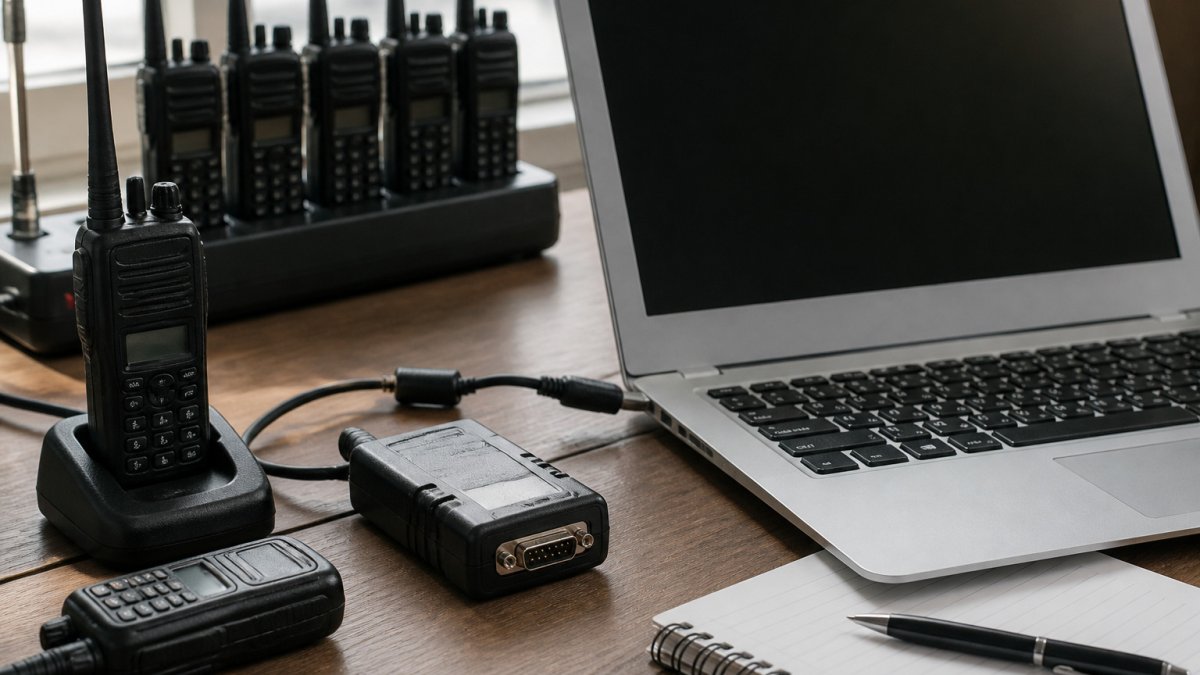
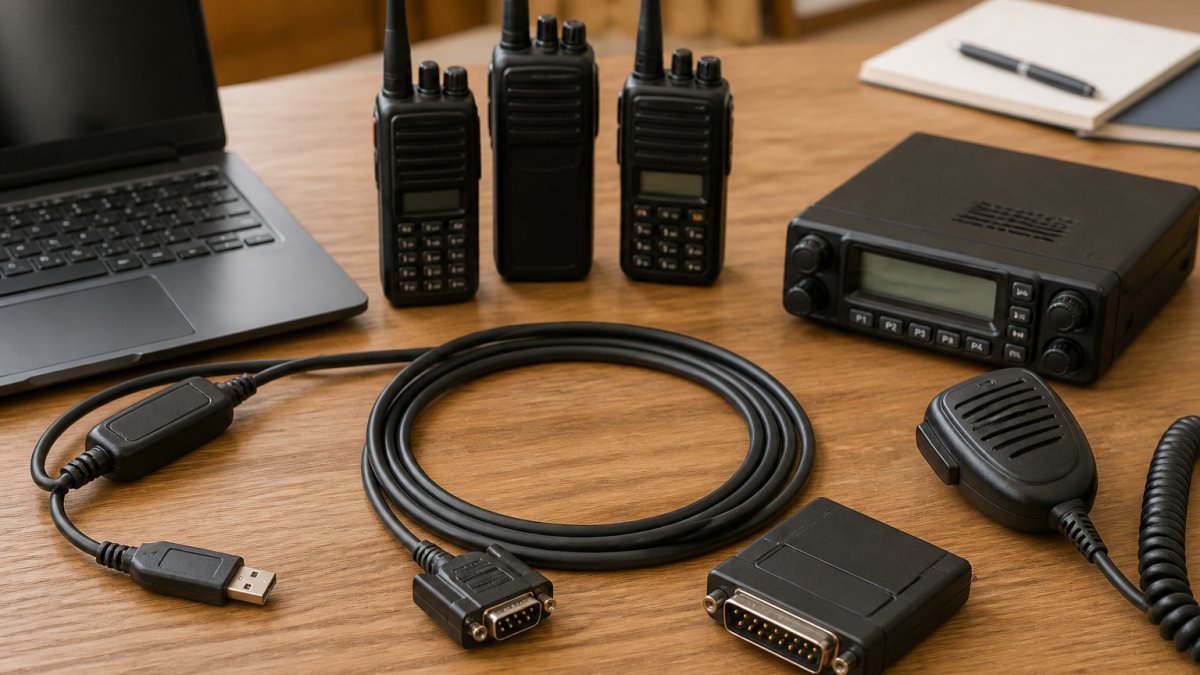
Compatibility starts with the physical connector, then moves to the protocol. Handheld radios, mobile transceivers, and HF rigs use different plugs, and even within one brand the pinout can change between model generations.
A model-specific cable is the difference between one that seats correctly and one that fits loosely and drops the connection mid-transfer.
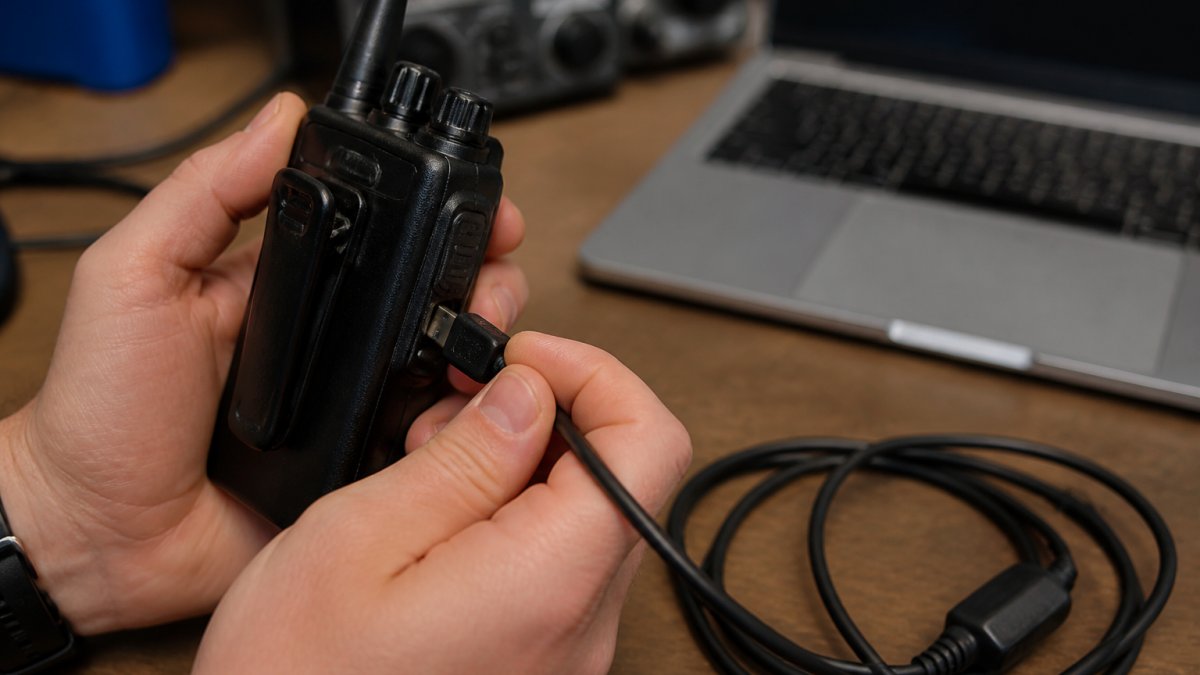
The connector families you will actually encounter
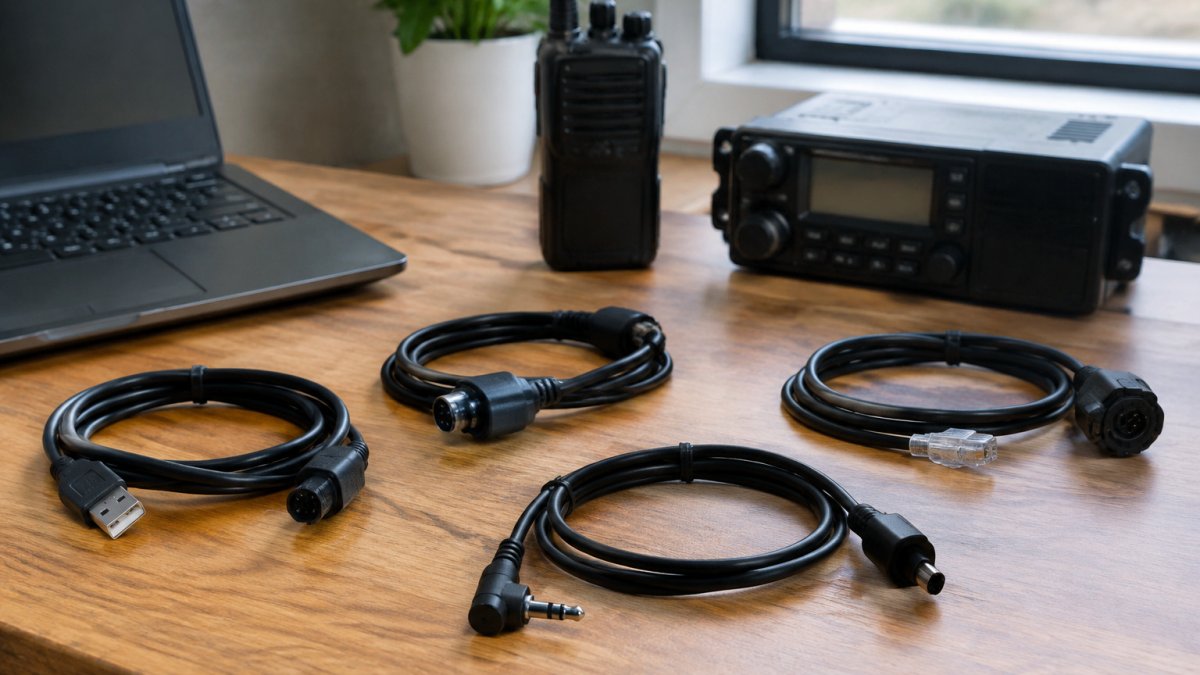
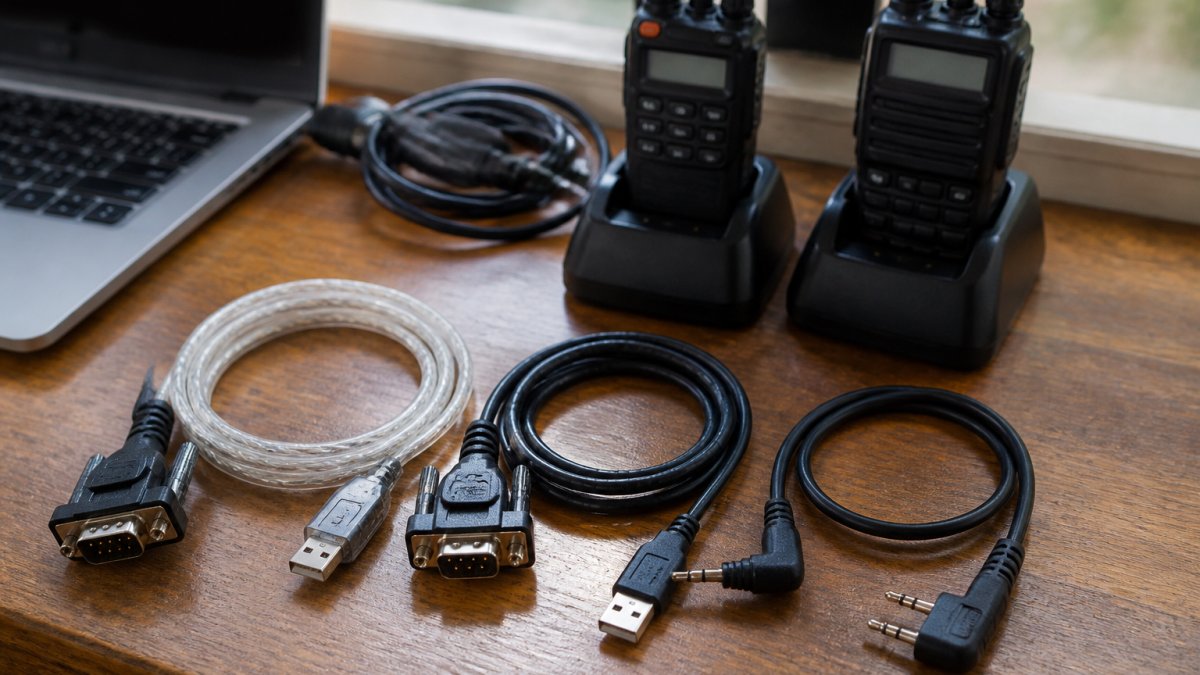
Most programming cables in 2026 fall into a small number of physical families. Identify yours before you shop:
- 2-pin / 3-pin speaker-mic style jacks, common on many handhelds and some mobiles; the cable plugs into the same jack the speaker mic uses. Pin spacing and keying vary by model, so a cable for one 2-pin radio may not seat in another.
- 3.5 mm / 2.5 mm TRS plugs, used on a range of handhelds and some mobiles, often with a USB-to-serial converter in the cable body. Tip-ring-sleeve wiring is model-specific.
- 8-pin modular (RJ-45 style) microphone jacks, common on mobile transceivers and some HF rigs; the cable plugs into the mic port.
Confirm the exact plug your radio uses before ordering.
A model-by-model compatibility check you can run in five minutes
Rather than trust a marketplace listing, verify compatibility against the radio itself:
- Open the radio's manual and find the programming or data port. Note the connector type and any warning about which jack to use.
- Check the manufacturer's or cable maker's model list. The cable should name your exact model, not just the brand or series.
- Confirm the software supports the model. A cable that fits a radio the software does not recognize is still useless.
- Look for a stated chipset. If the listing does not name the USB-to-serial chip, treat that as a warning sign.
- Check the return policy. Model-specific cables are the ones most often bought by mistake, so a return path matters.
Where compatibility most often breaks
The failures cluster in predictable places. Generational changes within a brand are the classic trap: a cable built for an earlier model in a series may not work with the next generation even though the plug looks similar. Mobile radios that program through the microphone jack are another: the same physical jack can carry different signals depending on the model.
How to Fix Radio Driver Errors on Windows 11 and 10
Driver errors on Windows 11 and 10 almost always trace to one of three causes: a missing USB-to-serial driver, a COM port conflict, or a cable whose chip the operating system does not recognize.
Start with the obvious. Unplug the cable, open Device Manager, and look under Ports for a device with a warning icon.
- Install the driver that matches your cable's chipset, not a generic one
- Reboot before reconnecting the cable
- Assign a fixed COM port number if another device is using the default
A common mistake is installing three drivers at once and creating a conflict. Remove old entries first. Our step-by-step guide on how to fix radio driver errors walks through each fix in order.
Best Ham Radio Programming Software 2026: What to Pair With Your Cable
Software is where a good cable earns its keep.
RT Systems' cable and software catalog pairs its cables with software built for each supported radio, which reduces the trial-and-error that generic tools require.
Before you commit, confirm three things: the software supports your exact model, it runs on your current operating system, and it can bulk-import your existing channel list.
Cable-Only vs. Cable-and-Software Bundles: Which Saves More Time
A cable-only purchase saves money up front but assumes you already have working software and drivers. A cable-and-software bundle costs more but removes the compatibility guesswork, which is where most beginners lose an evening.
| Option | What You Get | Best For | Trade-off |
|---|---|---|---|
| Cable only | USB programming cable | Operators with working software | You handle driver and software matching |
| Software only | Model-specific programming software | Users who already own a compatible cable | Requires the right cable and chipset |
| Bundle | Cable plus matched software | New licensees and multi-radio owners | Higher upfront cost |
If you program one radio once a year, cable-only may be enough. If you manage memory channels for club events or travel, the bundle pays for itself in avoided frustration.
Programming Cable Troubleshooting: COM Port, Drivers, and Radio Protection
Troubleshooting follows a fixed order: cable, driver, COM port, software, radio. Skipping steps is how people corrupt a channel list or, worse, interrupt a write mid-transfer. Work the sequence in order and stop at the first failure, that is the fault.
Step 1: Confirm the cable is seated and the radio is on
A surprising share of connection failures are physical. Push the plug fully into the data port until it seats, confirm the radio is powered on and in the correct mode, and try a different USB port on the computer. If the cable has an LED, note whether it lights. A cable that never enumerates is usually a cable or port problem, not a software one.
Step 2: Check Device Manager for the COM port
On Windows 11 and 10, open Device Manager and expand Ports (COM & LPT). With the cable plugged in, you should see a USB-to-serial COM port appear. Three outcomes matter:
- A COM port appears and disappears when you unplug the cable, the driver is working; move to Step 3.
- A device appears under 'Other devices' with a warning icon, the driver is missing or wrong; install the driver that matches the cable's chipset.
- Nothing appears at all, suspect the cable, the USB port, or a charge-only USB cable if one is in the chain.
Step 3: Resolve driver and COM port conflicts
Driver problems usually trace to a missing USB-to-serial driver, a COM port conflict, or a cable whose chip the operating system does not recognize. Fixes that resolve most cases:
- Install the driver that matches your cable's chipset, not a generic one.
- Reboot before reconnecting the cable.
- Assign a fixed COM port number if another device is using the default.
A common mistake is installing three drivers at once and creating a conflict. Remove old entries first. Our step-by-step guide on how to fix radio driver errors walks through each fix in order.
Step 4: Clear the software side
Close other programs that may be holding the port open, logging software, CAT control tools, and terminal programs are frequent culprits. Confirm the software is set to the same COM port Device Manager shows, and that the software supports your exact radio model. If the software offers a read operation, run a read before any write; a successful read proves the whole chain works.
Step 5: Protect the radio during writes
Safe practice is simple and worth repeating:
- Power the radio off before connecting or disconnecting the cable where the manual calls for it.
- Use only the cable and adapter specified for your model; unsuitable adapters can put voltage where the radio does not expect it.
- Do not interrupt a write to 'see if it worked.' Let it finish, then verify by reading back.
A quick diagnostic summary
| Symptom | Most likely cause | First fix |
|---|---|---|
| No COM port appears | Cable, USB port, or charge-only cable | Try another port and a known-good cable |
| Unknown device with warning icon | Missing or wrong driver | Install the chipset-specific driver |
| COM port present but software cannot connect | Port held open or wrong port selected | Close other programs, match the port number |
| Connection drops mid-transfer | Loose plug or unsuitable adapter | Reseat the cable, use the specified adapter |
| Radio unresponsive after a write | Interrupted transfer | Read back the channel list; restore from backup |
For connection problems specifically, our radio cable connection troubleshooting guide covers COM port conflicts and radio protection in detail.
Match Your Radio to the Right Programming Cable
Matching a radio to a cable comes down to three checks: the connector type, the radio model, and the software that supports it. See our guide to reliable programming cables for ham radio for the full breakdown. Get those right and the cable becomes invisible, which is exactly what you want.
RT Systems offers cables and software for a wide range of radio brands, and the easy-to-use interface is designed to simplify complex radio settings for beginners and advanced operators alike.
Best for: operators who value a cable matched to their exact model. Skip if: you only need a spare cable for a radio you have already confirmed works with a generic converter.
Pricing depends on the cable and software you choose, so check the RT Systems site for current prices on your model.
Frequently Asked Questions
Why do I get driver errors when using cheap programming cables?
Some cheap programming cables use USB-to-serial chipsets that Windows does not support well, so the cable can show up as an unknown device or fail to create a COM port. Buying a cable with a genuine chipset and matching driver avoids the cycle of uninstalling and reinstalling drivers.
Are RT Systems cables compatible with all radio brands?
No single cable works with every radio. Check the product page for your exact model before ordering. If you own several radios, you may need more than one programming cable.
What is the difference between a generic USB cable and a dedicated programming cable?
A generic USB cable carries power and data for devices like phones, but it does not translate the serial signals a radio expects. A dedicated programming cable includes the correct USB-to-serial chipset and a connector wired for your radio's data port. Using a generic cable usually results in no connection or a failed read. The dedicated cable is the part that makes PC connectivity and memory channel programming possible.
How do I fix radio driver errors on Windows 11?
Open Device Manager and look for the cable under Ports or as an unknown device. If it appears with a warning icon, right-click and update the driver, or install the driver from the cable maker's site and restart. Check that the correct COM port is selected in your programming software. RT Systems provides setup videos and phone and email support to walk you through driver installation if the cable still does not connect.
Program your next radio without the driver headaches. RT Systems, Inc. builds model-specific cables with reliable chipsets, pairs them with easy-to-use programming software, and backs them with phone and email tech support plus setup videos. Get started with RT Systems, Inc. and program your memory channels with confidence.