 blog
7 Ways to Manage Large Radio Frequency Lists
Last Updated: November 1, 2026
Quick Summary
Managing radio frequency lists well means building one master spreadsheet with fixed, typed columns and controlled-list values. Import it as CSV, audit it regularly for duplicates and errors, and back it up before every change.
- Give every spreadsheet column a fixed data type, such as decimal MHz for frequencies.
- Use data validation to restrict mode, tone mode and service to approved values.
- Add a duplicate key column and flag any count above 1 for manual review.
- Test a CSV import with 10 to 20 rows before loading the full list.
- Save a dated backup before every major change, stored away from your daily computer.
Table of Contents
- Why Large Radio Frequency Lists Get Messy Fast
- Build a Radio Frequency Spreadsheet Template
- Importing CSV Files to Radio Software Without Losing Data
- Batch Edit Radio Frequencies Safely
- Check for Duplicates, Errors and Bad Entries
- Back Up Radio Programming Files Before Every Change
- Set a Routine for Updating Your Frequency List
- Frequently Asked Questions
Why Large Radio Frequency Lists Get Messy Fast
Managing radio frequency lists gets hard quickly.
Here is the core problem. Every new frequency adds another field to check: the output, the offset, the tone, the name and the location.
Most people notice the trouble only when something breaks. A wrong offset means a repeater stays silent. A duplicate entry wastes a memory slot.
The fix is not one magic tool. It is a set of habits.
Build a Radio Frequency Spreadsheet Template
A spreadsheet is the easiest place to start. It works with any radio and any software, and you can edit it on almost any computer.
Make one master template and reuse it for every list. For guidance on organizing large repeater lists, see how to organize large repeater lists.
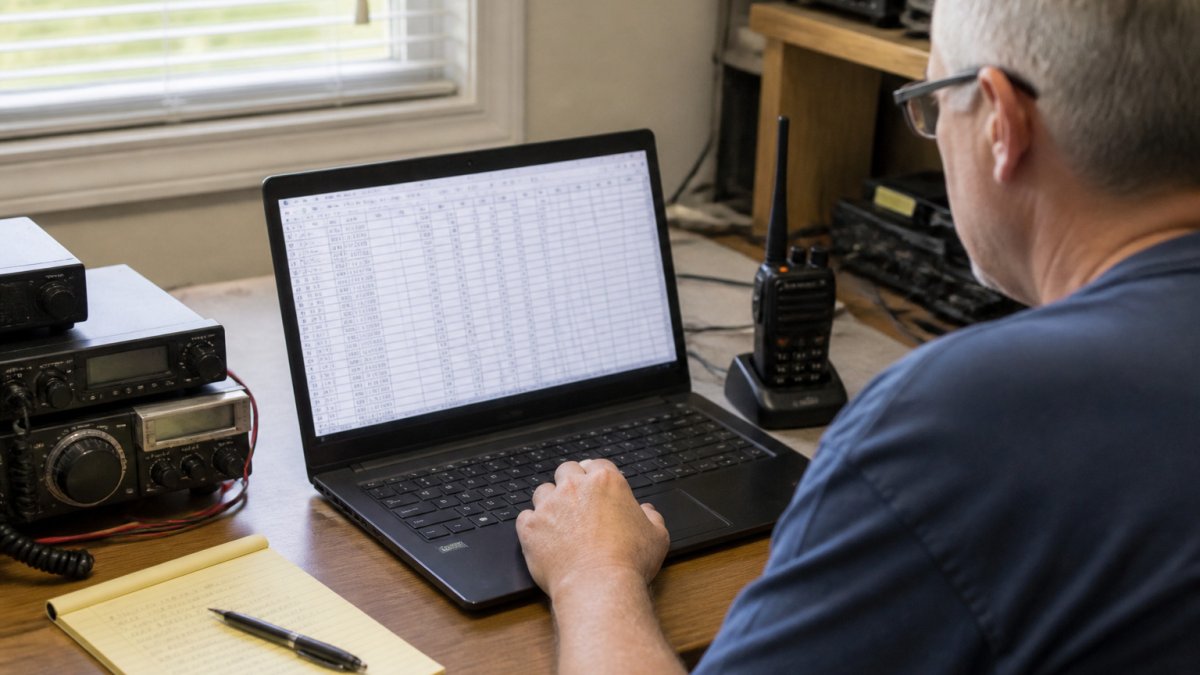
Core Fields and Their Data Types
Start with the fields you need to program a radio correctly, and lock each one to a type so imports behave predictably:
- Channel name, text, 16 characters or fewer (many radios truncate longer names), no commas
- Receive frequency, decimal number in MHz to four or five decimal places (for example, 146.94000), never text
- Transmit frequency, decimal number in MHz; leave blank for simplex
- Offset, decimal number in MHz (for example, 0.600 or 5.000); do not mix signs and text like "+600 kHz"
- Tone mode, controlled list:
None,CTCSS,DCS - Tone value, decimal in Hz for CTCSS (for example, 100.0) or a three-digit octal code for DCS (for example, 023)
- Mode, controlled list:
FM,AM,NFM,DMR,P25,YSF,D-STAR - Power, controlled list:
High,Mid,Low - Service, controlled list:
Amateur,Public Safety,Weather,GMRS,FRS,MURS,Business,Other - Band, controlled list:
VHF,UHF,700/800,Other - State, two-letter USPS code
- County, text
- City, text
- Source, text (URL or document name where you verified the entry)
- Verified date, date in ISO format (YYYY-MM-DD)
- Notes, free text, last column so it never breaks an import
Keeping these fields consistent, and typed, is what makes the list easy to import later. A frequency stored as text will sort alphabetically (so 146.94 lands before 52.525), and a tone stored as "100.0 Hz" will fail a numeric import. Set the column format in your spreadsheet before you type the first row.
Controlled Vocabularies and Validation Rules
Use your spreadsheet's data-validation feature to restrict the controlled-list columns to the allowed values. This is the single highest-leverage habit for a large list: it prevents typos like DMR (trailing space), dmr, and Digital from becoming three different modes.
Add these validation rules:
- Frequency range, reject values outside your radio's tuning range (commonly 108-174 MHz for VHF and 400-520 MHz for UHF on many scanners; check your model's spec sheet)
- Offset sign and magnitude, reject offsets that would push the transmit frequency outside the band
- Tone value, reject CTCSS values that are not on the standard tone list (67.0 through 254.1 Hz)
- Duplicate key, a helper column that concatenates receive frequency, tone, and mode so you can flag duplicates with a count
Organizing by Location, Service and Band
Pick one main sorting rule and stick to it. Many people sort by state, then county, then service. Others sort by band, so all 2-meter entries sit together.
Add a tag column for each entry, such as VHF, UHF, county-fire, weather, or club. Tags let you filter a few thousand rows down to the ones you need in seconds, and they survive re-sorting in a way that a visual grouping does not.
A Portable, Import-Ready Layout
Keep the columns in the same order as your programming software's import dialog. Most CSV importers map by position first and by header name second, so a stable order reduces mapping errors. Put free-text notes last.
If you share the template with a club, include a second tab that documents each field's definition, allowed values, and an example row.
The article lists the core fields a frequency spreadsheet needs and the data type each one should use.
| Field | Data type | Rule |
|---|---|---|
| Channel name | Text | 16 characters or fewer, no commas |
| Receive frequency | Decimal in MHz | Four or five decimal places, never text |
| Tone mode | Controlled list | None, CTCSS or DCS |
| Tone value | Decimal Hz or octal code | CTCSS like 100.0; DCS like 023 |
| Mode | Controlled list | FM, AM, NFM, DMR, P25, YSF or D-STAR |
| Verified date | Date | ISO format YYYY-MM-DD |
| Notes | Free text | Last column so it never breaks an import |
Importing CSV Files to Radio Software Without Losing Data
A CSV file is a plain text table where each field is separated by a comma.
Export your spreadsheet as CSV, then import it into your programming software. Check the column mapping carefully.
Watch out: a single extra comma inside a channel name can split one field into two and throw off the rest of the row. Put names in quotes or avoid commas entirely.
Start with a small test file of 10 to 20 rows. Once it imports cleanly, load the full list.
Learn more about this in our guide to importing CSV files to radio software. For larger imports, our guide on how to bulk import repeater frequencies explains the common pitfalls.
Batch Edit Radio Frequencies Safely
Batch editing saves hours when you need to change many entries at once.
Always make a copy of the list before a batch change. Apply the edit to a small group first and check the results. Then apply it to the rest.
A good habit is to edit in the spreadsheet rather than inside the radio software. You can see every change, undo it and re-export the file.
Check for Duplicates, Errors and Bad Entries
Errors creep into large lists over time, and the bigger the list the faster they compound. Set aside a few minutes each month to run a structured audit rather than a visual scan. The goal is to catch four classes of problem: duplicates, impossible values, missing required fields, and stale entries that no longer match reality.
Finding Duplicates That Hide Behind Different Names
The same repeater often appears twice under different labels, W7ABC 146.94 and County EOC may be the same machine. Sorting by frequency puts exact matches next to each other, but it will not catch a duplicate that differs by a tone or a mode.
Build a duplicate key column that concatenates receive frequency, tone mode, tone value, and mode. Then use a COUNTIF against that column; any count above 1 is a candidate duplicate.
Validating Against a Trusted Source
For every entry you are unsure about, verify against a primary source before you program it: the repeater owner's or club's published listing, a coordinated frequency database, or the issuing agency's public document. Record the source and the verification date in the template's Source and Verified date columns.
A common pattern is to verify in batches by county or by club, so one session covers a coherent group and the source links stay reusable.
Catching Impossible and Missing Values
Run these checks as filters rather than eyeballing rows:
- Out-of-range frequencies, anything outside your radio's tuning range, or outside the band you intended for that list
- Offset errors, a transmit frequency that falls outside the band, or an offset with the wrong sign for the band plan
- Missing required fields, blank tone where the mode is
CTCSSorDCS, blank mode, blank offset on a repeater entry - Format drift, frequencies stored as text, tones with units attached, state names instead of two-letter codes
A pivot table counting blanks per column will surface missing fields faster than scrolling. Conditional formatting on the frequency and tone columns will flag format drift as you type.
Tracking Changes and Verification Dates
Add two audit columns: Verified date and Last changed. Update Verified date whenever you confirm an entry against a source, and Last changed whenever you edit any field. Then you can filter for entries not verified in the last 12 months and re-check them on a rolling schedule instead of rebuilding the whole list.
If you share the list, keep a simple change log tab: date, channel name, field changed, old value, new value, who changed it. It takes seconds per edit and answers the "why did this stop working?" question months later.
Back Up Radio Programming Files Before Every Change
A backup is your safety net. If a new import goes wrong or a laptop fails, a backup lets you restore your working list in minutes.
Save a dated copy of your spreadsheet and of your radio's programming file before every major change.
Our guide on how to backup radio memory settings walks through the full process. If you are changing computers, moving radio settings to a new computer covers the transfer steps.
Set a Routine for Updating Your Frequency List
A list that is never reviewed will go stale. Repeaters change owners, tones get updated and clubs move their channels.
Pick a fixed schedule, such as the first Saturday of each month.
Short, regular updates are far easier than rebuilding a list from scratch every few years. A routine keeps your list accurate and your radios ready when you need them.
Frequently Asked Questions
How do you organize a large list of radio frequencies?
Group entries by location, service and band in a single spreadsheet with one row per channel. Use consistent columns such as frequency, offset, tone, mode, channel name and notes. Sort or filter by county or service to build scan-ready lists for each trip or event. Keep one master file as the source of truth and export smaller working lists from it, so changes made in one place carry through to every radio.
How do you import a CSV file into radio programming software?
Map your spreadsheet columns to the field names the programming software expects, then save the file as CSV with plain text values and no merged cells. Import a small test batch of 10 to 20 entries first and check the results on the radio. Once the test batch lands correctly, import the full list. Keep the original CSV unchanged so you can repeat the import if a field maps incorrectly.
How do you check a frequency list for duplicates or errors?
Sort by frequency and look for repeated values, then use a conditional formatting or COUNTIF formula to flag duplicates automatically. Check that every frequency falls within the band your radio supports and that tone or offset values match the repeater they belong to. Compare a sample of entries against a trusted source before loading the list, since one wrong digit can make a channel unusable.
How often should you update a radio frequency list?
Review the list at least once or twice a year, and check it before any event or trip where local services may change. Repeaters and public safety channels are reassigned or taken offline, so entries can go stale. Record the date of each review in the file so you know which entries have been verified and when.
Managing a large list takes a system, not just patience. Start with one clean spreadsheet template, back it up before every change and review it on a schedule. RT Systems, Inc. builds programming tools and cables for a wide range of radio brands, and we are glad to help you keep your memories organized and your radios programmed correctly.