 how-to
Importing CSV Files to Radio Software: A How-To Guide
Table of Contents
- Why CSV Files Are the Universal Bridge for Radio Programming
- What You'll Need Before You Start
- Step-by-Step: Importing CSV Files to Radio Software
- Building a Reliable Radio Programming Software CSV Template
- Troubleshooting Radio Software Import Errors
- Best Practices for Radio Memory Management
- Cross-Platform Conversion and Data Normalization
- Conclusion
- Frequently Asked Questions
Last Updated: September 16, 2026
Why CSV Files Are the Universal Bridge for Radio Programming
Importing CSV files to radio software works because a comma-delimited text file is the one format nearly every spreadsheet, database, and programmer can read. According to the CHIRP Project Wiki, CSV files are recognized as generic, radio-independent text files that require software-specific formatting before they can be uploaded to a radio. That single property explains why the format persists across decades of radio hardware.
What You'll Need Before You Start
Gather four things before touching the import wizard: your radio, a reliable programming cable, your source data in a spreadsheet, and your software's expected schema.
- Radio and power: Connect to a stable power source. Battery-only writes during a low charge commonly cause partial imports.
- Programming cable: Use a cable matched to your radio's connector and chipset. USB-to-serial adapters with cloned chips are the most frequent hardware culprit.
- Source data: Your channel list in Excel, Google Sheets, or a CSV exported from another programmer.
- Target schema: The column layout your software expects. Export a sample from the radio first if possible.
Step-by-Step: Importing CSV Files to Radio Software
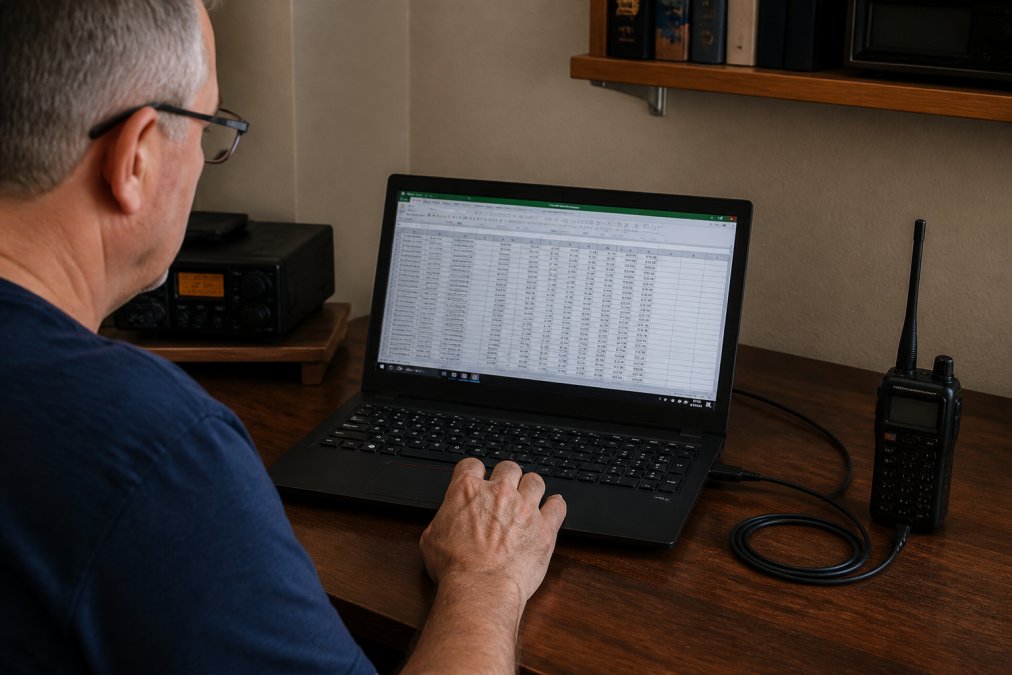
The import process follows the same three-phase pattern in almost every programmer: export a reference file, align your columns to it, then run the wizard and validate.
Step 1: Export Your Current Radio Data
Read the radio first, even if it's empty. This produces a file in the software's native structure, your Rosetta Stone.
Step 2: Match Your CSV Columns to the Software Schema
Open both files side by side and align them column by column. This is data mapping, and it is where imports are won or lost.
Step 3: Run the Import Wizard and Validate
Load the aligned file through the import wizard, then stop before writing to the radio.
Building a Reliable Radio Programming Software CSV Template
A reusable radio programming software CSV template saves more time than any single import. Build it once, and every future batch import starts from a known-good structure.
The template should lock down four properties:
| Property | What to Set | Why It Matters |
|---|---|---|
| Encoding | UTF-8 without BOM | Prevents garbled characters in channel names |
| Delimiter | Match your software's export exactly | Wrong delimiter fails parsing silently |
| Header row | Identical names and order to the export | Positional readers ignore names entirely |
| Column count | Same as the export, no extras | Extra columns shift every field after them |
A Universal Column Set That Survives Round Trips
No single CSV works in every programmer, but a normalized intermediate column set works as a staging format you convert out of. Keep these columns in this order, then reorder per target:
Channel Number, integer, sequential, no gapsReceive Frequency, decimal in MHz, six places (for example, 146.520000)Transmit Frequency, decimal in MHz, six places; repeat the receive value for simplexOffset Direction, one of+,-, orsimplexOffset, decimal in MHz, blank when simplexTone Mode,none,tone,TSQL, orDTCSCTCSS Tone, decimal in Hz (for example, 100.0)DCS Code, three-digit octal (for example, 023)Name, uppercase, no spaces, within the target's character limitPower,low,mid, orhighSkip,offorskipComment, free text, kept short
Normalization Rules to Apply Before Copying Across
Normalization makes the template reusable. Apply these rules to the raw sheet before it touches the template:
- Frequency precision: store frequencies as decimal MHz with six decimal places. Avoid scientific notation, which some spreadsheet programs apply automatically to long numbers.
- Units: keep every frequency in MHz and every tone in Hz. Mixed units are the most common cause of a file that imports but tunes the wrong frequency.
- Tone formatting: CTCSS as a decimal (100.0), DCS as a three-digit octal code (023). Do not mix the two in one column.
- Name length: truncate names to the shortest limit among your target radios. Many handhelds cap names well below what a mobile will accept.
- No leading zeros on frequencies: write 146.52, not 0146.52.
- No thousands separators: write 146.520000, not 146.52 or 146,520.
- Blank cells, not placeholders: leave unused fields empty rather than writing
N/Aor-, which some parsers treat as data.
Making the Template Portable
Save the template as a plain .csv file, not an .xlsx workbook, when you hand it to the programmer. Spreadsheet formats carry formatting, formulas, and multiple sheets a programmer cannot read. Keep the workbook as your working copy and export a clean CSV for each import.
Troubleshooting Radio Software Import Errors
Troubleshooting radio software import errors comes down to two failure families: the file won't parse at all, or it parses into the wrong fields. Each has a distinct cause and fix.
A Diagnostic Path for "Unknown File Format" Errors
When the software rejects the file before reading a single channel, walk this sequence in order. Stop at the first step that changes the result.
- Confirm the file is plain text. Open it in a plain text editor, not a spreadsheet. Readable rows of values separated by commas or tabs mean the file is text. Binary characters mean it was saved in a spreadsheet format with a
.csvextension. - Check the delimiter. Count the separators in the first data row. Tabs rather than commas mean the file is tab-delimited. Re-save as comma-separated or tell the import dialog to expect tabs.
- Check the encoding. Re-save as UTF-8 without a byte order mark. Legacy encodings mangle special characters in channel names, and a BOM can appear as a stray character in the first header cell.
- Check line endings. Spreadsheet programs may write Windows-style line endings where the software expects Unix-style, or the reverse. Re-save with the expected line ending, or convert in a text editor.
- Check the header row. If the software reads positionally, the header row may be treated as a data row. Confirm whether your software expects a header, and remove or add it accordingly.
- Check the file extension. Some programmers filter by extension and reject a file named
.txteven when the contents are valid CSV. Rename to.csvand retry.
Header Mismatches and Column Misalignment
When the file imports but the data is scrambled, you have a header or alignment problem. Symptoms: frequencies in name fields, blank rows scattered through the channel list, truncated entries at the end.
Common alignment causes and their fixes:
- Extra columns: a trailing comma or an unused column shifts every field after it. Delete the column and re-export.
- Missing columns: the software fills the gap with defaults or blanks, which can push values into the wrong field. Add the missing column in the correct position.
- Renamed headers: a header like
Freqwhere the software expectsReceive Frequencymay be ignored by a name-matching parser. Rename to match the export exactly. - Quoted fields with embedded commas: a channel name containing a comma splits into two fields unless it is wrapped in quotes. Remove commas from names or ensure the field is quoted.
When the Import Succeeds but the Radio Misbehaves
A clean import does not guarantee correct operation. If channels appear but the radio will not transmit, check offset direction and value first, a simplex channel with a stray offset transmits off-frequency. If tones are wrong, the radio may receive but stay silent on transmit. Read the radio back and compare values against your source sheet before assuming a hardware fault.
Best Practices for Radio Memory Management
Good memory management starts before the import. Hobbyists who avoid data loss treat their channel list as an asset with a backup strategy.
Cross-Platform Conversion and Data Normalization
Moving channel data between programming packages is where most hobbyists hit a wall: the formats are structurally incompatible, and no universal converter exists.
Conclusion
The gap between a CSV file and a working radio memory bank is entirely structural: encoding, delimiters, column order, and validation. None of it is hard once you know where to look, and all of it is invisible until an import fails.
Frequently Asked Questions
What is the correct CSV file structure for radio programming software?
It depends on the software, but most programs expect a header row followed by one channel per line. Typical columns include frequency, channel name, tone mode, and transmit offset. CSV files are generic, radio-independent text files, so you must align your headers to match the specific structure your software reads from the radio. If the header row is missing or the column order is wrong, the import wizard will reject the file or map fields incorrectly.
Why does my radio software return an 'Unknown file format' error during CSV import?
The most common causes are file encoding and delimiter problems. Radio software often expects ASCII or UTF-8 encoding, and a file saved in a different format can fail silently. Delimiters matter too: a comma-delimited file is standard, but some exports use semicolons or tabs. Open the file in a plain text editor, confirm the first line is a proper header row, and re-save as UTF-8 before trying the import again.
Can I use Excel to edit radio memory data before importing?
Yes, and many operators do. Excel handles large channel lists well, and you can sort, filter, and deduplicate frequencies before import. Two cautions: Excel may strip leading zeros from frequency values, and it can reformat tone codes as dates. Format those columns as text before you type or paste data, then save as CSV. After saving, open the file in a text editor to confirm the header row and delimiter survived the export.
How do I manage 200+ frequencies across multiple radios without losing data?
Build one master CSV that holds every channel, then create filtered copies for each radio. Keep a column for radio model or memory bank so you can sort and export subsets. Use a consistent naming convention for channel names and group related frequencies together. Back up the master file separately from any radio-specific exports, and re-import the master whenever you add channels. This keeps synchronization predictable across radios.