 how-to
How to Organize Large Repeater Lists
Table of Contents
- Why Organizing Repeater Lists Matters
- Choose Your Organizing Framework
- Create a Repeater List Spreadsheet
- Clean Up Duplicate Repeater Frequencies
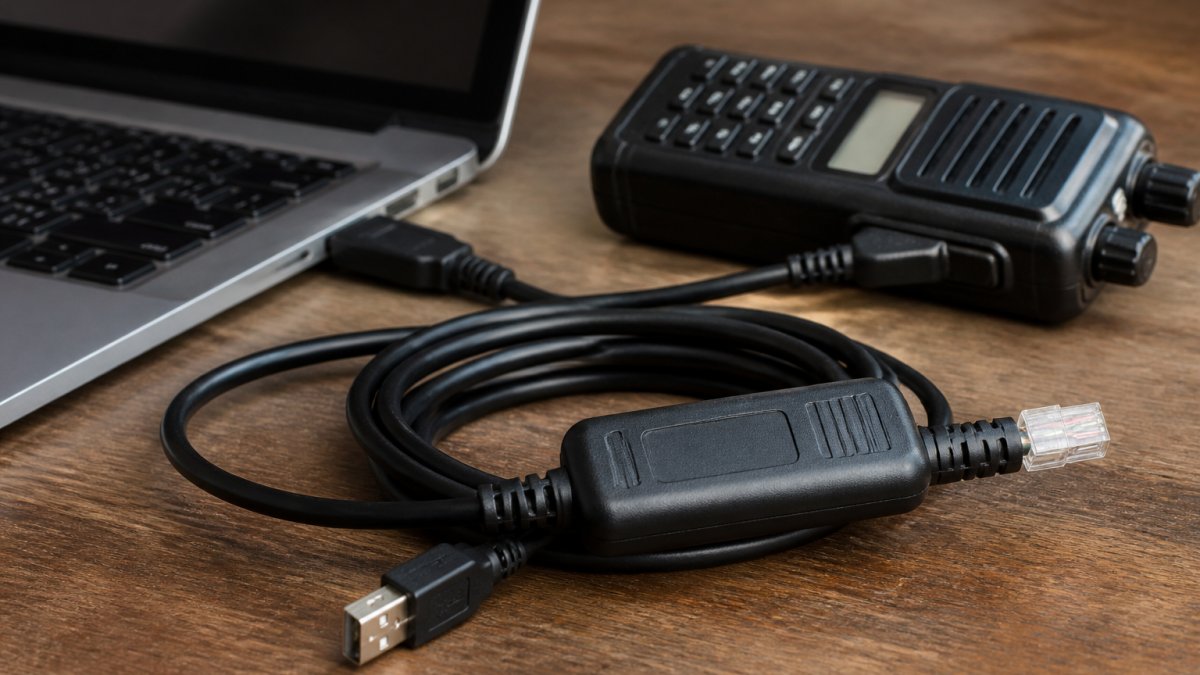
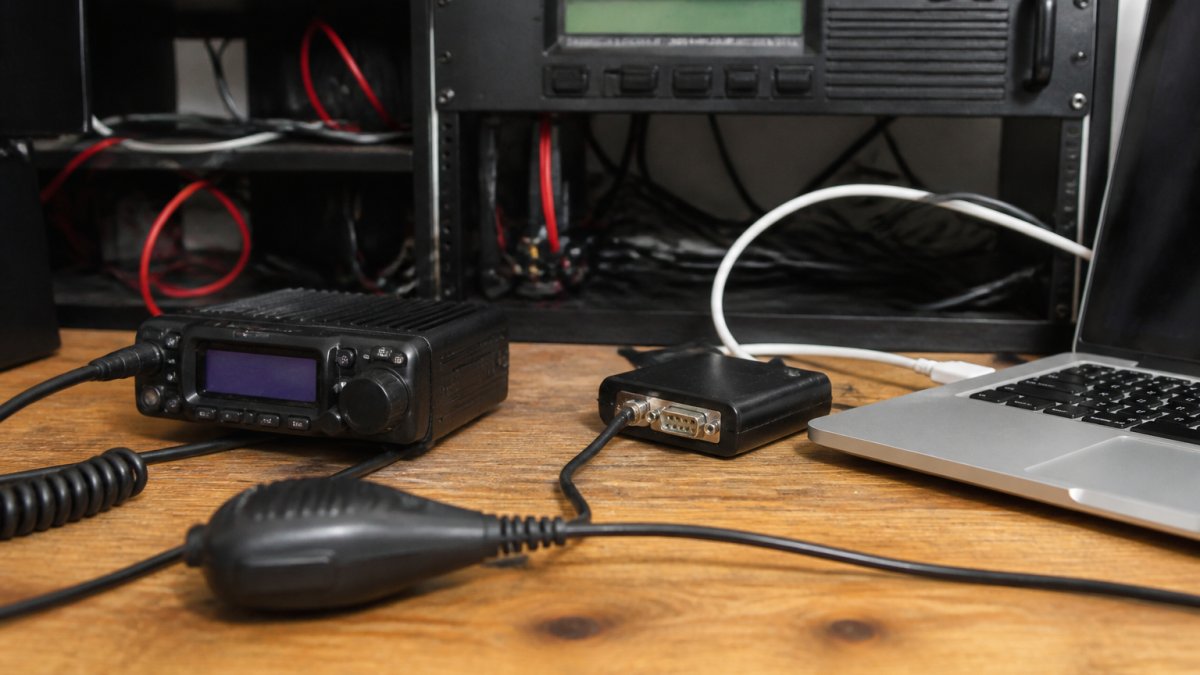
- Import Repeater Data Into Radio Programming Software
- Back Up Radio Programming Data
- Maintain Your Organized Repeater List
- Frequently Asked Questions
Last Updated: October 12, 2026
Why Organizing Repeater Lists Matters
Without understanding how to organize large repeater lists, you waste time searching frequencies, miss buried repeaters, and reprogram your radio because you forgot what you added.
The 2026 ARRL Repeater Directory lists over 22,000 repeaters, organized by state, county, and city (Now Shipping: the 2026 edition of The ARRL Repeater Directory® powered by RepeaterBook).
This is where how to organize large repeater lists becomes essential. A good system saves hours, prevents duplicates, and keeps your radio memory clean and programming reliable.
Choose Your Organizing Framework
Before adding channels, decide how to organize them. Your framework determines how you name channels, which repeaters you prioritize, and how easily you'll find them in the field.
Geographic Organization by State, County, and City
Geographic grouping is the most common approach: organize by location, not frequency or band. Start with your home state or region, break it down by county, then city or town, mirroring the ARRL Repeater Directory. When you travel, you get to the area you need fast. The drawback: if you work across multiple bands in one area, repeaters scatter across memory banks, so you may switch banks to find a VHF versus UHF repeater in the same town.
Band and Frequency-Based Grouping
Band-based organization groups all VHF repeaters together, then UHF, then other bands, sorting by frequency within each. This works well if you operate primarily on one or two bands. The limitation: if you travel frequently, you'll jump between bands and memory banks constantly, losing the geographic context that tells you which repeaters are useful for a trip.
Travel Area and Coverage Zones
Some organize by travel routes or frequent destinations: one bank for the commute, another for weekend trips, another for club events. Your most-used repeaters are organized exactly how you use them. The trade-off: it requires knowing your travel patterns in advance, and new areas don't fit existing banks.
Create a Repeater List Spreadsheet
Before importing anything into your radio, build a spreadsheet as your master list, the source of truth for all repeater data. Other providers mention spreadsheets in passing; almost none show the structure, naming scheme, and validation steps that make a large list usable across radios.

Essential Data Fields to Track
Your spreadsheet needs these core fields, in a fixed order so every import tool sees the same columns:
- Channel Name: The label that will appear on the radio display (see naming scheme below)
- Receive Frequency: The repeater output in MHz (e.g., 146.940)
- Offset: The shift direction and amount (e.g., +600 kHz, -600 kHz, +5.000 MHz)
Keep columns minimal at first; add more later. The key is consistency, every repeater gets the same fields filled the same way.
A Reusable Naming Convention That Scales
Channel names matter: a good name tells you what you're looking at without opening a note field. Most advice offers three patterns and says pick one, which breaks down the moment you cross a state line or add a second band in the same town.
Use a layered scheme instead, built left to right, most-stable to least-stable:
[Area][Band][Seq] [Call]
- Area: A short, fixed code for the region or route (e.g.,
HMEfor home metro,I90for a highway corridor,SPRfor a specific city) - Band:
2M,70C,125,6M - Seq: A two-digit sequence within that area and band (
01,02, ...)
Examples that survive a radio display and a spreadsheet sort:
HME2M01 W7ABC, home metro, 2 m, first entryHME70C01 W7ABC, home metro, 70 cm, first entryI902M03 N7XYZ, highway corridor, 2 m, third entry
Why this scales: sorting by Channel Name automatically groups by area, then band, then sequence. You never have to remember whether you used "Springfield VHF 146.52" or "VHF Springfield 1", the name is the sort key.
Inconsistent naming creates confusion when you are operating under stress. A standardized naming convention takes 10 minutes to establish and saves hours of frustration later. Write the scheme in a comment cell at the top of the sheet so future-you can decode it.
Deduplicate, Validate, and Retire Stale Entries
A large list is only useful if it's clean. Build three passes into your routine.
Pass 1, Deduplicate. Sort by Receive Frequency, then Tone Value.
Pass 2, Validate. Spot-check 20 random rows against a current directory or the trustee's listing, updating any field that disagrees.
Pass 3, Retire. Any row with Status Unverified and a Last Verified date older than 12 months gets Status Retired.
Filter, do not delete, when you retire an entry. A repeater that goes quiet for a year sometimes comes back, and a filter is reversible while a delete is not.
Clean Up Duplicate Repeater Frequencies
Large repeater lists attract duplicates. The same repeater appears twice under different names. Conflicting information exists for the same frequency. Stale entries point to repeaters that no longer operate.
Identify and Remove Conflicting Listings
Duplicates happen for three reasons: you imported the same list twice, added a repeater manually and forgot you already had it, or merged lists from different sources. Sort your spreadsheet by frequency; identical frequencies appear next to each other. When you find a duplicate, keep the entry with the most complete information, or the most recent verification date if both are equally complete, and delete the other.
Verify Current Information and Accuracy
Repeater data goes stale: repeaters go off the air, tone codes change, frequencies shift. Spot-check your list against the current ARRL Repeater Directory: pick 20 random repeaters, verify each, and update any errors. If one hasn't been verified in over a year, flag it and contact the trustee or check recent activity logs, inactive repeaters clutter your list and waste memory.
Import Repeater Data Into Radio Programming Software
Your spreadsheet is ready, now move the data into your radio. This is where a good import tool makes the difference, and where most guides stop at "export as CSV." The workflow below is device-aware: it accounts for different memory capacities, bank behaviors, and owning more than one radio.
Prepare Your Data for Import
Most radio programming software accepts CSV files or text imports, and your spreadsheet must match the expected format. Export as CSV, then open it in a text editor to verify it is clean. Look for:
- Consistent column order matching the software's template
- No extra spaces, smart quotes, or non-ASCII characters
- Frequencies in the unit the software expects (MHz vs. kHz, check the template)
Check your software's documentation before exporting: a wrong format can corrupt your codeplug or fail silently.
Match the Import to Your Radio's Memory Model
Every radio has a memory limit, and the limit is not the whole story. Two radios with "1,000 channels" can behave very differently once you start grouping.
Know three numbers before you import:
- Total channel capacity, the hard ceiling (e.g., 100, 200, 1,000, or more).
- Bank or zone count, how many groups the radio supports, and whether each group has its own limit.
- Per-bank limit, some radios cap channels per bank even when total capacity is higher.
A common pattern: a radio advertises 1,000 channels but supports only 10 banks of 100. If your home metro alone has 140 entries, you cannot fit them in one bank. Plan the split before you import. If your list exceeds capacity, you have four options, in order of preference:
- Filter by Status. Import only
Activerows. Retired and Unverified rows stay in the spreadsheet. - Split by area or route. One bank per area code from your naming scheme. This aligns the radio's grouping with your spreadsheet's sort.
- Rotate codeplugs. Keep two or three codeplugs (home, travel, event) and load the one you need.
Transfer Codeplugs Across Radios
If you own more than one radio, build once, then port, don't rebuild by hand.
- Keep the master spreadsheet as the source of truth. Never edit channels directly in a radio and forget to update the sheet.
- Export a radio-specific CSV for each model. Column names and tone formats differ between manufacturers, so maintain one export template per radio.
- After importing, read the radio back and diff it against the CSV: compare row counts and spot-check a few channels.
If you're managing large lists across multiple radios, RT Systems, Inc. offers programming software that handles bulk imports efficiently, validating your data before it goes to the radio.
Radio enthusiasts managing 200+ repeater frequencies across multiple devices. The software handles large imports without data loss.
Verify the Import Before You Trust It
An import that "succeeds" can still be wrong. After every import:
- Read the radio back into the software.
- Compare the channel count to the number of rows you intended to import.
- Spot-check five channels across different banks for frequency, offset, and tone.
- Key up on a known-good local repeater to confirm the radio transmits and receives as programmed.
If any check fails, restore the previous codeplug and fix the CSV before re-importing. Don't patch errors channel-by-channel in the radio.
Back Up Radio Programming Data
Your organized repeater list is valuable. Protect it.
Create Version Control for Your Codeplug
A codeplug is your radio's complete configuration file: all your channels, tones, settings, and memories. Back it up before you make changes, and create a new backup every time you add a significant number of repeaters. Use a naming system like "Codeplug_VHF_Oct2026_v1", "Codeplug_VHF_Oct2026_v2", and store backups in at least two locations: your computer and cloud storage. If something goes wrong during an import, you can restore in minutes; without a backup, you start over from scratch.
Maintain Your Organized Repeater List
Organization isn't a one-time task.
Organizing large repeater lists takes planning, but the payoff is enormous: you save time in the field, avoid duplicate entries and stale frequencies, and maintain a reliable radio memory.
RT Systems, Inc. makes this process simpler with programming software that handles large imports and validates data before it reaches your radio.
Get started organizing your repeater list today. Your future self, searching for a repeater in an unfamiliar area with a clean, organized memory, will thank you.
Frequently Asked Questions
What's the best way to organize a large repeater list?
The best approach depends on how you use your radio. Geographic organization by state, county, and city works well for travel and regional coverage. Band and frequency sorting suits operators who switch between VHF, UHF, and other bands frequently. Many experienced operators use multiple views, storing one master list in a spreadsheet, then importing subsets into their radio programming software based on their immediate needs. Start with the framework that matches your primary use case, then adjust as your list grows.
How do I create an effective repeater list spreadsheet?
Include these essential fields: frequency, offset, tone (CTCSS or DCS), location (city and state), coverage area, and status (active or stale). Use a consistent naming convention for channel names, for example, 'City-Band-Number' like 'Denver-VHF-01'. Sort by your organizing framework (geographic or band), then use filters to view subsets without deleting data. This approach lets you maintain one comprehensive list while easily accessing the repeaters you need for specific trips or events.
How do I remove duplicate or outdated repeater entries?
First, sort your spreadsheet by frequency and offset to spot duplicates side by side. Check the ARRL Repeater Directory or local club listings to verify which entry is current. Mark stale listings as 'inactive' rather than deleting them, you may need the historical record. Use a filter to hide inactive entries when importing into your radio, keeping your active channel list clean while preserving backup data for reference.
Can I import a large repeater list directly into my radio?
Yes, most modern radio programming software accepts CSV or text imports. Before importing, verify your radio's memory capacity, many radios store 100 to 1,000 channels depending on the model. Organize your import file to match your radio's format, then test with a small subset first. After a successful import, always back up your codeplug immediately. This gives you a recovery point if you need to adjust the import or troubleshoot compatibility issues.