 blog
Reliable Programming Cables for Ham Radio: 2026 Guide
Table of Contents
- Why Reliable Programming Cables Matter for Ham Radio
- Ham Radio Programming Cable Compatibility: What Actually Works
- Radio Programming Cable Drivers: Setup and Troubleshooting
- Ham Radio Programming Software and Cable Integration
- OEM vs. Third-Party Radio Programming Cables: Key Differences
- How to Test Cable Reliability and Diagnose Connection Failures
- Selecting the Right Cable for Your Radio Setup
- Frequently Asked Questions
Last Updated: October 20, 2026
Why Reliable Programming Cables Matter for Ham Radio
Getting a ham radio to work properly means managing frequencies, memory channels, and settings with precision. That's where reliable programming cables for ham radio become essential.
The stakes are real. A bad cable doesn't just waste your time, it can lock you out of your radio entirely or force you to start from scratch. According to RT Systems technical support documentation, connection failures account for the majority of programming issues users report.
That's why we focus on this problem at RT Systems, Inc. We've spent over 20 years helping radio enthusiasts move past the frustration of unreliable cables and OEM software that feels designed to confuse rather than help.
Ham Radio Programming Cable Compatibility: What Actually Works
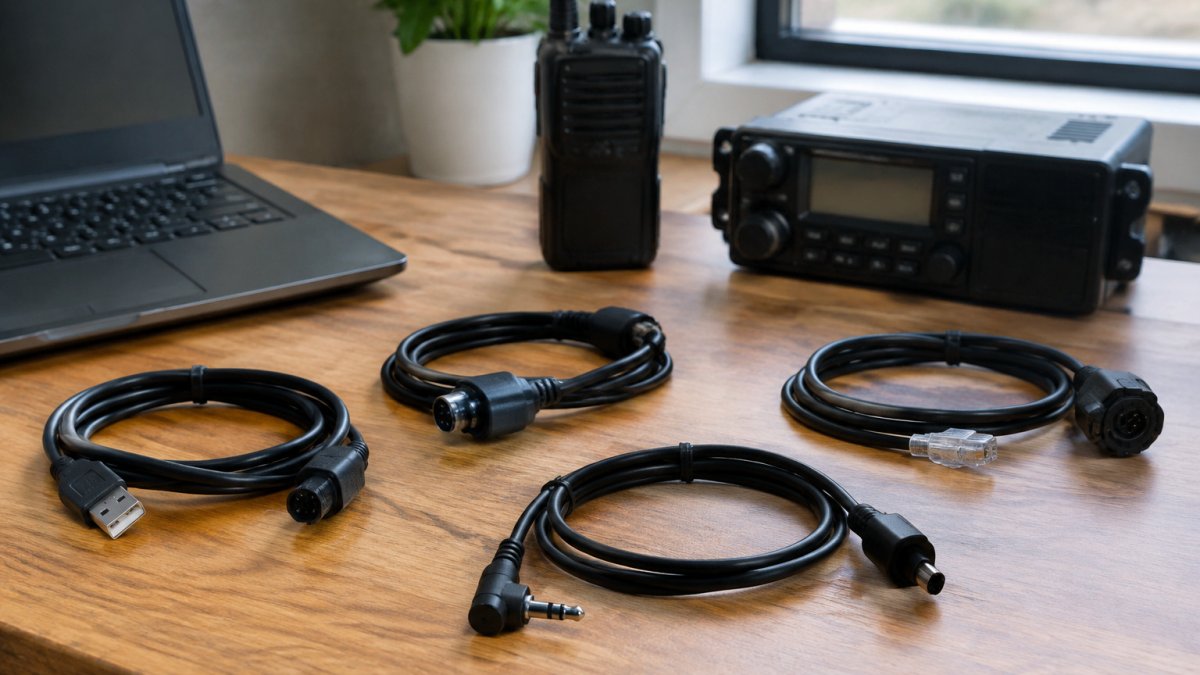
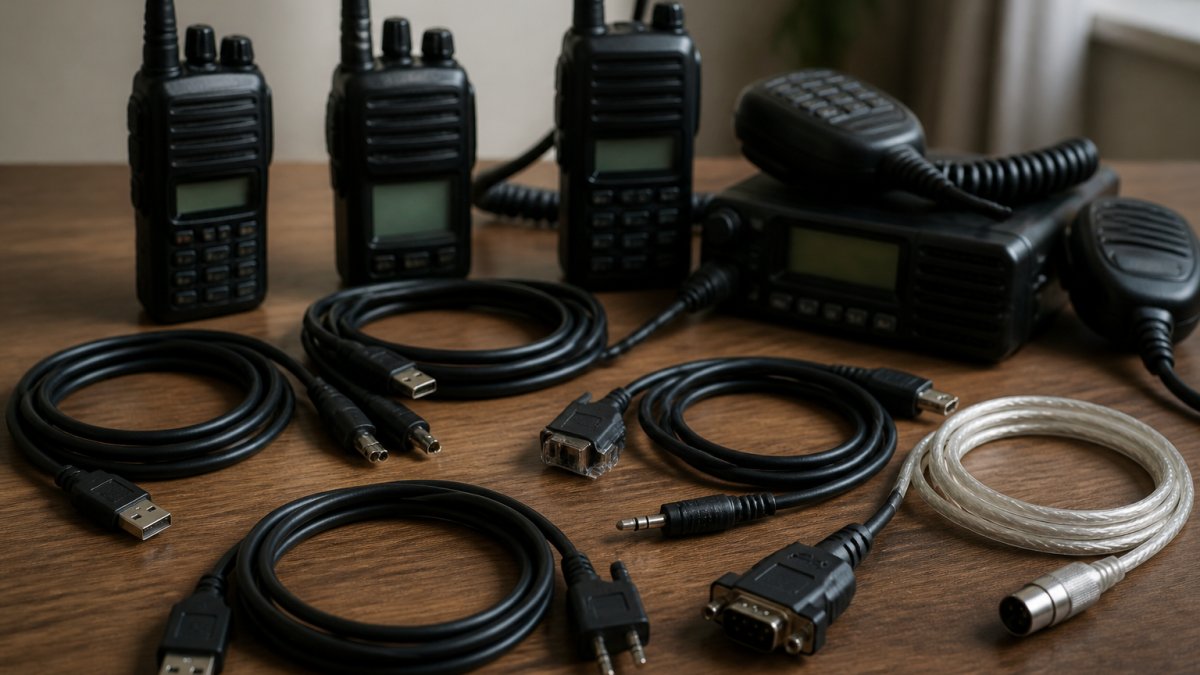
Model-specific compatibility is the foundation of a working setup. A universal programming cable doesn't exist in the ham radio world, each cable is engineered for specific radio brands and connector types.
Connector Types and Radio Models
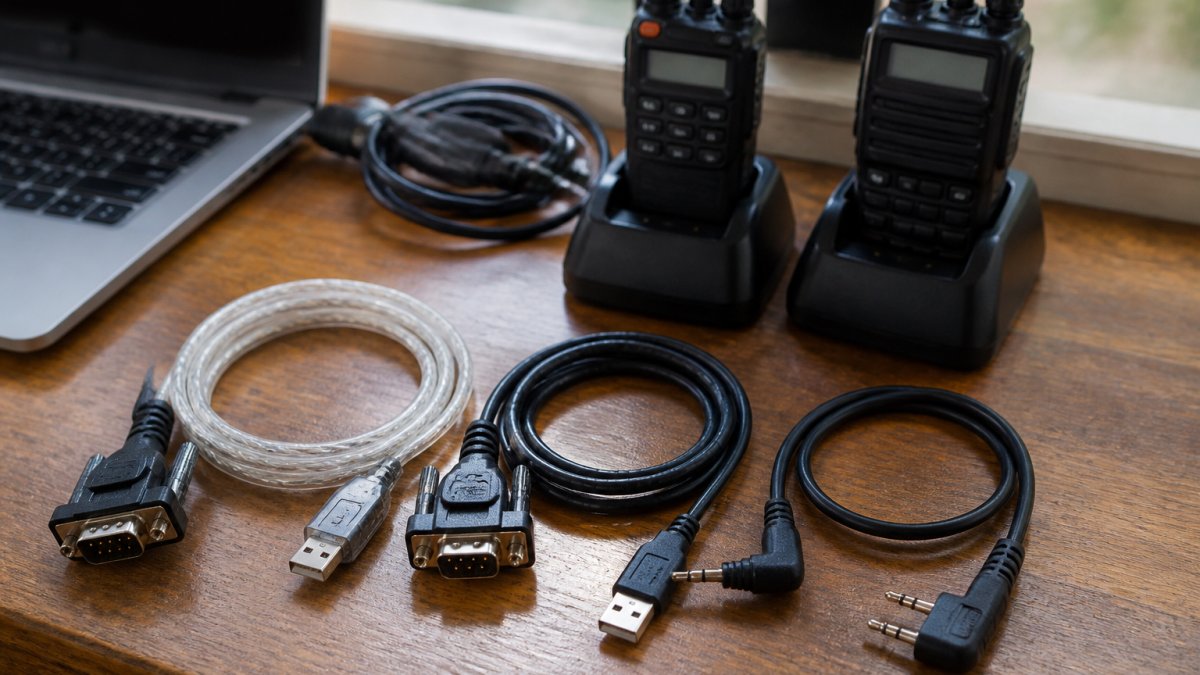
The connector on your radio's data port determines which cable you need. Common types include 3.5mm audio jacks, 6-pin mini-DIN connectors, and USB-C ports on newer models. Yaesu radios like the FT-857, FT-897, and FT-817/818 use specific connector configurations that differ from Kenwood, Icom, or Alinco models.
Before ordering a cable, identify your radio's exact model number and look up its data port specifications. The wrong connector won't fit, and forcing it damages both the cable and your radio. According to RT Systems cable compatibility guides, checking the radio's manual or manufacturer specs takes five minutes and prevents costly mistakes.
USB-to-Serial Chipsets and Radio Interface Standards
The chipset inside your cable determines how well data flows between your computer and radio. FTDI chipsets are the industry standard for reliable data transfer because they handle serial communication cleanly and work across Windows, macOS, and Linux systems.
Cheaper cables sometimes use knockoff chipsets or outdated designs that cause intermittent failures. You'll see connection drops, timeout errors, or the programming software refusing to recognize the radio.
A quality cable from RT Systems, Inc. uses FTDI chipsets and is individually tested before shipping. That testing catches chipset failures before the cable reaches your hands. It's the difference between a cable that works 95% of the time and one that works every time.
Radio Programming Cable Drivers: Setup and Troubleshooting
Even the best cable fails without proper drivers. Your computer needs software that tells it how to talk to the cable's chipset. Without drivers, Windows sees the cable but can't communicate through it.
FTDI Chipsets and Device Driver Installation
FTDI provides drivers for all major operating systems. On Windows, the driver installs automatically for most cables, but sometimes Windows Update delivers an outdated version that causes conflicts. On macOS and Linux, you may need to download the driver manually from FTDI's website.
The driver installation process is straightforward: plug in the cable, Windows detects it, and the driver loads. Your Device Manager shows a new COM port. If Device Manager shows an unknown device or a yellow warning icon, the driver didn't install correctly. Uninstall the device, restart your computer, and plug the cable back in to force a fresh driver load.
Operating System Compatibility and COM Port Configuration
Windows assigns a COM port number to your cable (COM3, COM4, etc.). Your programming software needs to know which COM port to use. If you have multiple USB devices, COM port numbers can shift when you plug in new devices or rearrange cables.
Check your COM port assignment in Device Manager under Ports. Right-click the FTDI device and select Properties to see the exact COM port. Then open your programming software and tell it to use that specific port.
macOS and Linux use different device naming conventions (/dev/ttyUSB0 on Linux, /dev/tty.usbserial on macOS), but the principle is the same. Your programming software needs to point to the correct device path.
Ham Radio Programming Software and Cable Integration
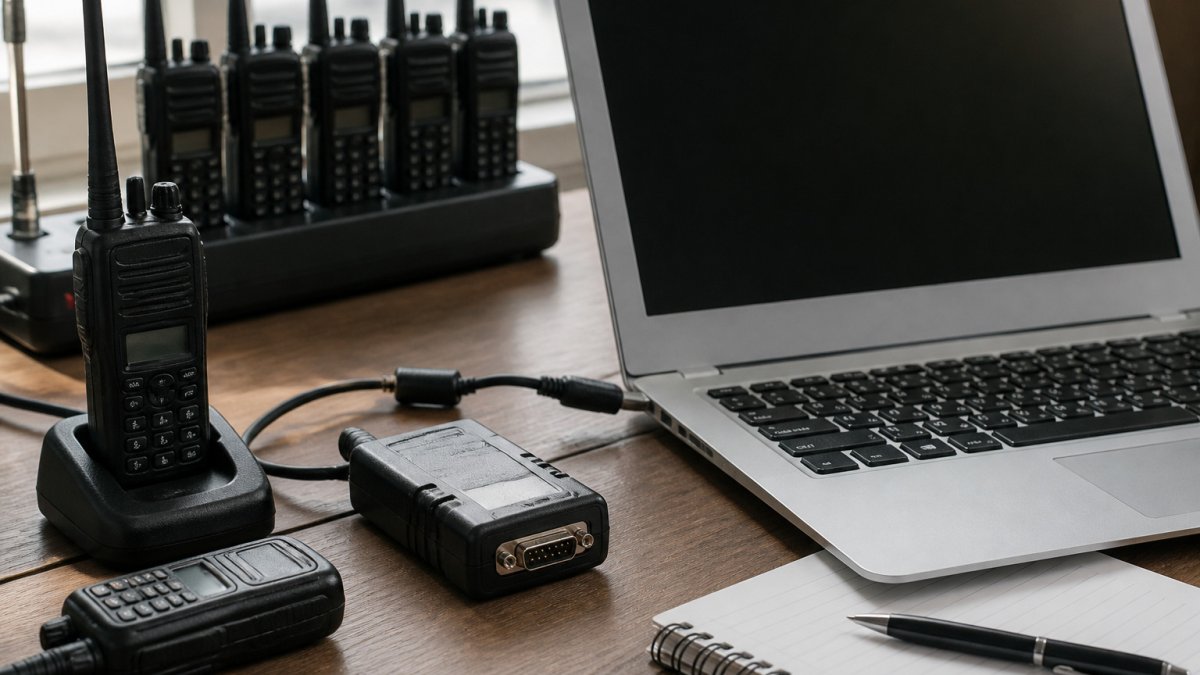
Your cable is only half the equation. The programming software on your computer handles the actual data transfer. The software sends frequency lists, memory settings, and control commands through the cable to your radio.
CAT Control vs. Programming Functions
Programming cables handle two different jobs. Programming mode uploads and downloads entire memory banks, all your frequencies, names, and settings at once. CAT (Computer-Aided Transceiver) control sends real-time commands while you're using the radio, like changing frequencies or adjusting power levels from your computer.
Some cables support both functions. Others work only for programming. Check your cable's specs to know what it can do. A cable rated for programming only won't let you use CAT control software, even if the physical connector fits.
Data Transfer Reliability and Frequency Synchronization
Reliable data transfer means your frequencies arrive on the radio exactly as you entered them. A weak connection causes dropped packets, some frequencies upload correctly, others don't, and you end up with incomplete memory banks.
Frequency synchronization happens when your programming software verifies that the data on your radio matches what you sent. If the verification fails, the software stops and alerts you to the problem instead of silently corrupting your memory. That's why quality matters. A cable that drops even 1% of data packets will fail the verification check, forcing you to try again.
| Cable Feature | Impact on Reliability | Impact on Speed |
|---|---|---|
| FTDI chipset | Stable data transfer, rare errors | Standard transfer rates |
| Quality construction | Fewer connection drops | Consistent performance |
| Proper shielding | Reduced RF interference | No slowdown |
| Correct drivers | Recognized by all software | Plug-and-play experience |
OEM vs. Third-Party Radio Programming Cables: Key Differences
Original equipment manufacturer (OEM) cables come directly from radio makers like Yaesu or Kenwood. Third-party cables are made by independent manufacturers like RT Systems, Inc.
Build Quality and Durability
OEM cables are sometimes an afterthought, manufacturers focus on the radio itself and treat the cable as an accessory. Third-party cables built specifically for programming often use better materials, cleaner solder joints, and more rigorous testing.
RT Systems, Inc. tests each cable individually. That commitment to build quality means your cable survives years of use without the connection degrading. A poorly made cable develops intermittent failures after six months of regular plugging and unplugging.
Support, Warranty, and Long-Term Reliability
When an OEM cable fails, you contact the radio manufacturer's support line. Third-party manufacturers like RT Systems, Inc. offer phone and email support directly.
Warranty coverage matters too. If a cable fails within its warranty window, you get a replacement.
How to Test Cable Reliability and Diagnose Connection Failures
Before you blame the cable, verify it's actually the problem. A systematic test eliminates guesswork.
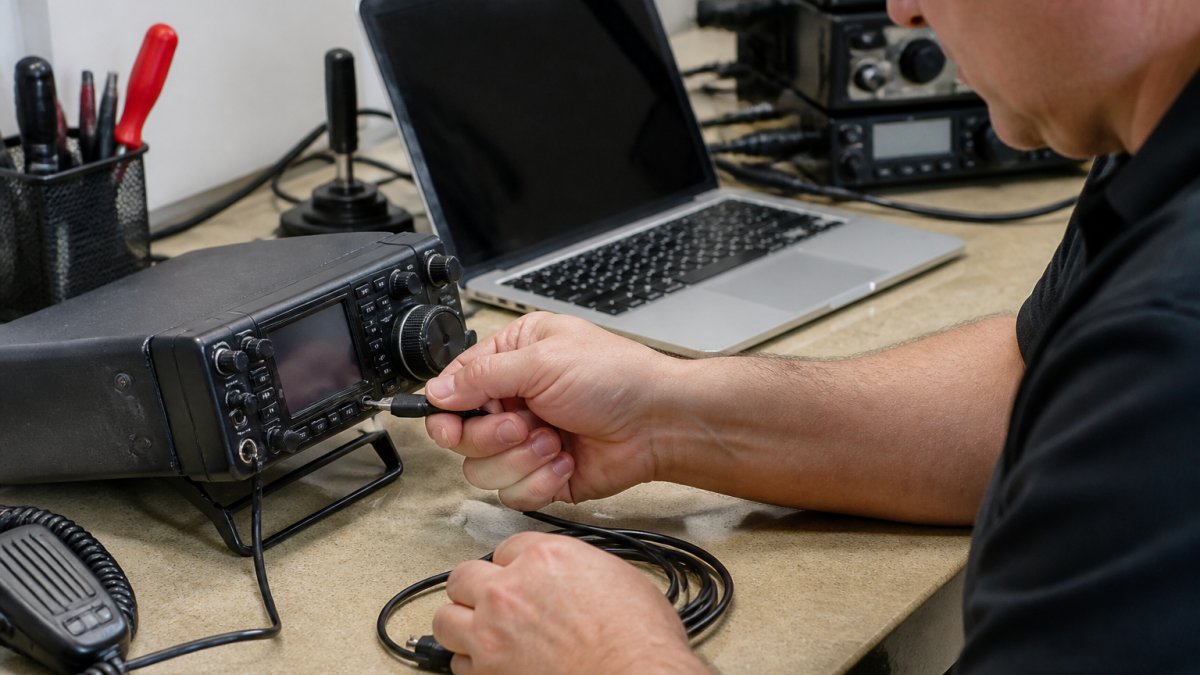
Troubleshooting by Symptom
Start by identifying what's happening. Is the cable not recognized at all? Does Device Manager show an unknown device? Does the software see the radio but fail during transfer? Each symptom points to a different cause.
If Device Manager shows nothing, the cable isn't being detected. Check that you're using a USB port that works (try a different port on your computer). If it still doesn't show up, the cable's chipset may be dead. If Device Manager shows an unknown device with a warning icon, the driver didn't install.
Electrical Isolation and Radio Protection
A quality cable includes electrical isolation, circuitry that protects your radio from voltage spikes or ground loops that could damage sensitive components. Cheap cables skip this protection to save money.
When you connect a radio to your computer, you're creating a path between two devices with different ground references. Without isolation, stray voltage can flow from one to the other, potentially damaging the radio's receiver or control circuits. Isolation breaks that path while still allowing data through.
Check the cable's specifications for mention of isolation or protection circuitry. If it says nothing about protection, assume there is none.
Selecting the Right Cable for Your Radio Setup
Choosing the right cable means matching four things: your radio's brand, its specific model, the connector type it uses, and the programming software you plan to run.
Matching Radio Brand, Model, and Connector Type
Write down your radio's exact model number. Look it up in the manufacturer's documentation to find the data port connector type. Then search for cables compatible with that specific model. Don't guess based on the radio's age or brand family, connector types vary even within the same brand's product line.
If you own multiple radios with different connectors, you'll need multiple cables or a cable with interchangeable connector tips. Some cables offer this flexibility, though they cost more.
Cable Length, Plug and Play Features, and Stable Connections
Shorter cables (6 feet or less) are more reliable than longer ones. Long cables pick up RF noise from your radio's antenna, introducing interference into the data signal.
Plug-and-play means the cable works immediately after you plug it in, no manual driver installation. Most modern cables with FTDI chipsets work this way on Windows.
A stable connection stays connected during the entire programming session without dropping or requiring you to unplug and replug the cable.
Choosing a reliable programming cable for ham radio comes down to matching your specific radio model, ensuring the cable includes a quality FTDI chipset, and verifying driver compatibility with your operating system.
Frequently Asked Questions
Are ham radio programming cables universal, or do I need a cable specific to my radio model?
Programming cables are model-specific. A cable designed for a Yaesu radio will not work reliably with a Kenwood or Icom model due to different connector types, pin configurations, and serial signal standards. Always verify that your cable matches your exact radio brand and model before purchase. Using an incompatible cable can result in connection failures or data transfer errors.
Do ham radio programming cable drivers need to be installed on my computer?
Yes. Most reliable programming cables use FTDI chipsets, which require device driver installation on your computer. After connecting the cable via USB, your operating system may prompt you to install drivers automatically, or you may need to download them from the manufacturer's website. Once installed, the cable appears as a COM port in your programming software, enabling stable data transfer between your radio and computer.
What is the difference between OEM and third-party ham radio programming cables?
OEM cables are supplied by the radio manufacturer and typically cost more but offer guaranteed compatibility. Third-party cables from reputable vendors are often more affordable and may offer better build quality or durability. The key difference is support and warranty: established third-party manufacturers test cables individually and provide technical support, whereas cheaper alternatives may lack testing and reliability guarantees. Choose based on your radio model compatibility and the vendor's track record.
Why is my ham radio programming cable not working, and how do I fix it?
Connection failures typically stem from three causes: missing or outdated device drivers, incorrect COM port selection in your programming software, or a faulty cable. First, verify that drivers are installed and your USB port recognizes the cable. Next, check that your programming software is configured to use the correct COM port. If the cable still doesn't work, test it on another computer to isolate whether the problem is the cable, the radio, or the computer setup. A reliable cable should establish a stable connection within seconds.