 how-to
Can You Program Old Kenwood Radios? A Complete Guide
Table of Contents
- Can You Program Old Kenwood Radios? The Short Answer
- Identifying Your Kenwood Radio Model and Compatibility
- Choosing the Right Kenwood Radio Programming Software
- Essential Hardware: Kenwood Radio Programming Cable and Drivers
- Step-by-Step: How to Program a Kenwood TK-3230 and Similar Models
- Programming Different Radios to the Same Frequency
- Troubleshooting Common Programming Issues
- Legal and Licensing Considerations for Frequency Programming
- Frequently Asked Questions
Last Updated: October 11, 2026
Can You Program Old Kenwood Radios? The Short Answer
Yes, you can program old Kenwood radios. The process depends on your radio model, the right software, and compatible hardware. Most older two-way radios use either OEM software from Kenwood or third-party alternatives. The key is matching your specific model with the correct programming cable and drivers.
You need three things: the radio model number, the right software, and a quality programming cable. Once you have those, you can read settings from your radio, modify frequencies and channels, and write everything back.
RT Systems, Inc. offers tools and cables that work with a wide range of radio brands, including older Kenwood models.
Identifying Your Kenwood Radio Model and Compatibility
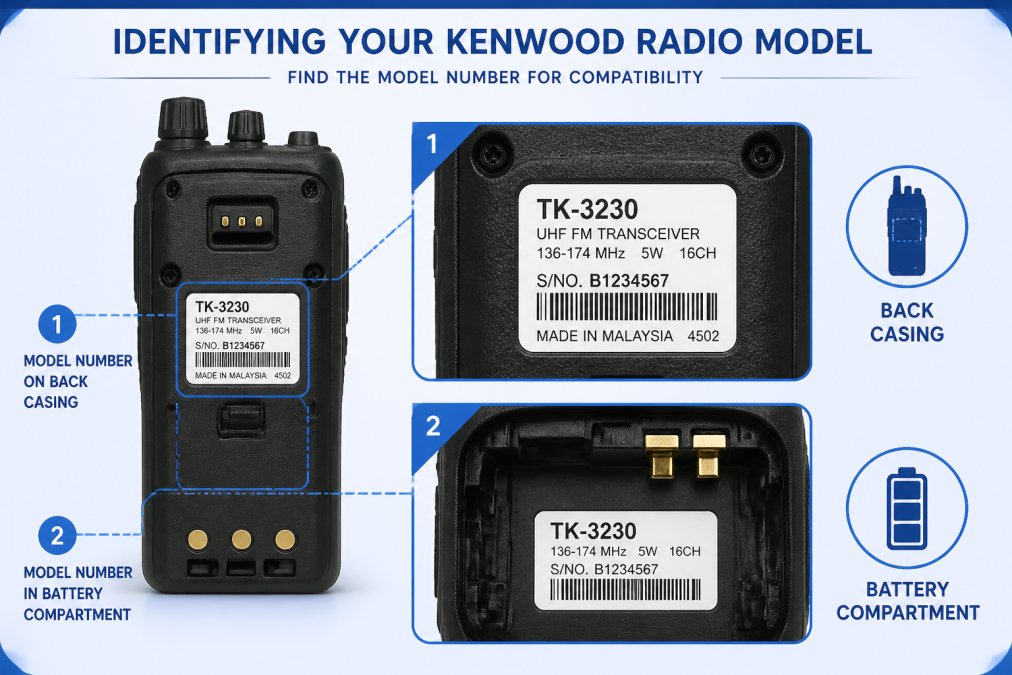
Finding your exact model number is critical, different Kenwood radios require different software and cables.
Finding your model number
Your model number is usually printed on a sticker on the radio's back or inside the battery compartment. Look for a label starting with "TK-" followed by numbers. Common older models include the TK-250, TK-260, TK-3107, TK-3207, and TK-3230. Write down the exact model number, you'll need it to find compatible software.
Checking programming compatibility
Older Kenwood models fall into two categories: conventional radios (analog signals, easiest to program) and digital radios (D-Star or other modes, requiring specialized software). Most TK-series radios from 2010 and earlier are conventional. Search for your model on the Kenwood website or radio forums to confirm it supports computer programming.
Choosing the Right Kenwood Radio Programming Software
Two main options exist for programming older Kenwood radios: OEM software from Kenwood and third-party alternatives.
OEM software vs. third-party options
OEM software comes directly from Kenwood and is designed for your specific model, but it's often outdated and difficult to find. Many programs were written for Windows XP or Windows 7, requiring workarounds or compatibility mode settings to run on Windows 11.
Third-party software like RT Systems, Inc. is built for modern computers, supports multiple brands and models, and includes frequency databases. The trade-off is that it may not support every model, so check compatibility before buying.
Legacy software for older models
Some older Kenwood radios only work with DOS-based software like the KPG-23D for the TK-250. Running DOS software on modern computers requires a DOS emulator or virtual machine. Third-party solutions eliminate this need. If your radio requires legacy software, check RadioReference forums for documented workarounds.
Essential Hardware: Kenwood Radio Programming Cable and Drivers
The programming cable is just as important as the software. A bad cable means nothing transfers between your radio and computer.
Cable compatibility and FTDI chipsets
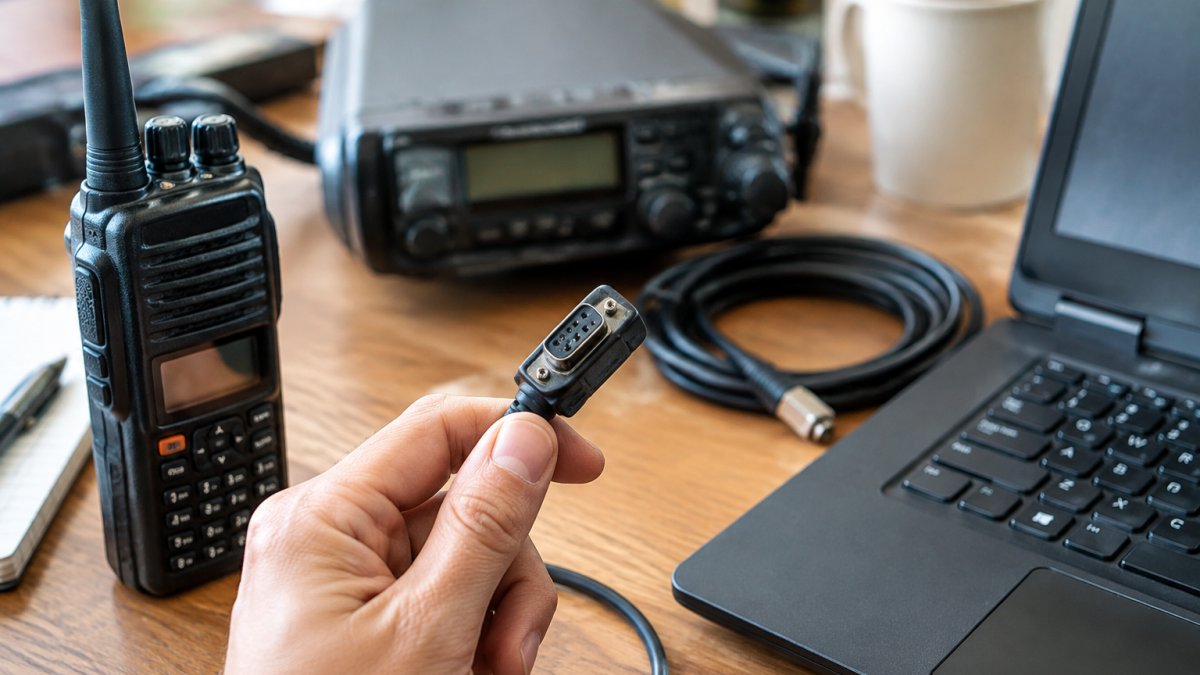
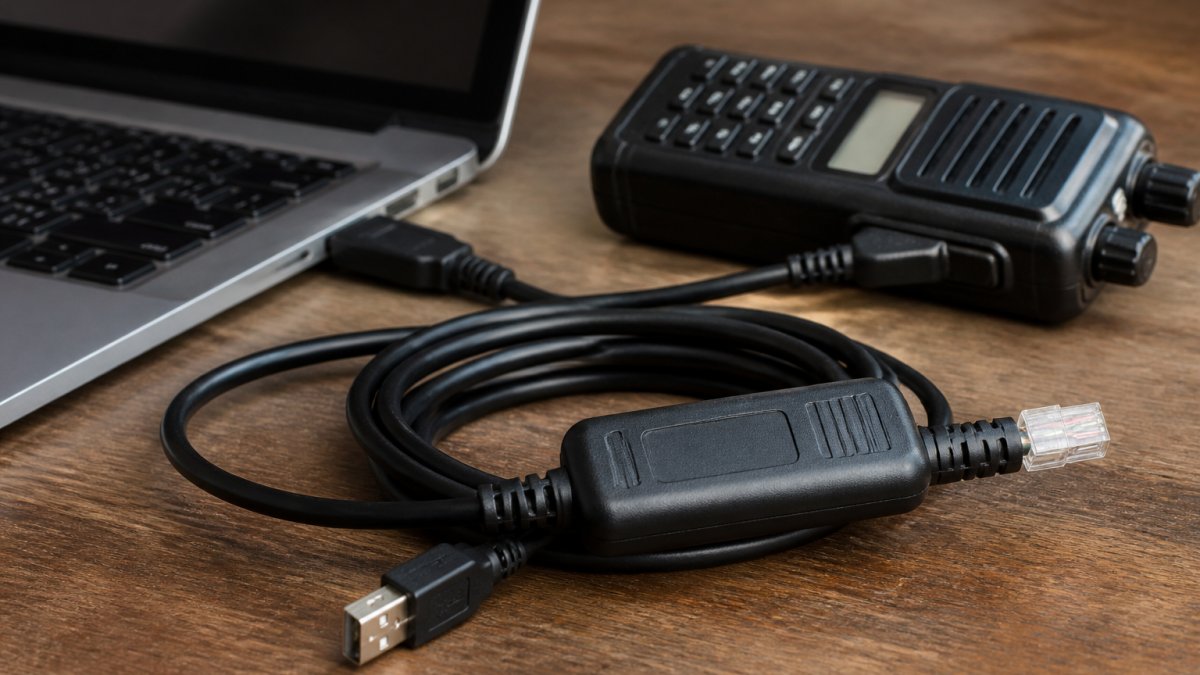
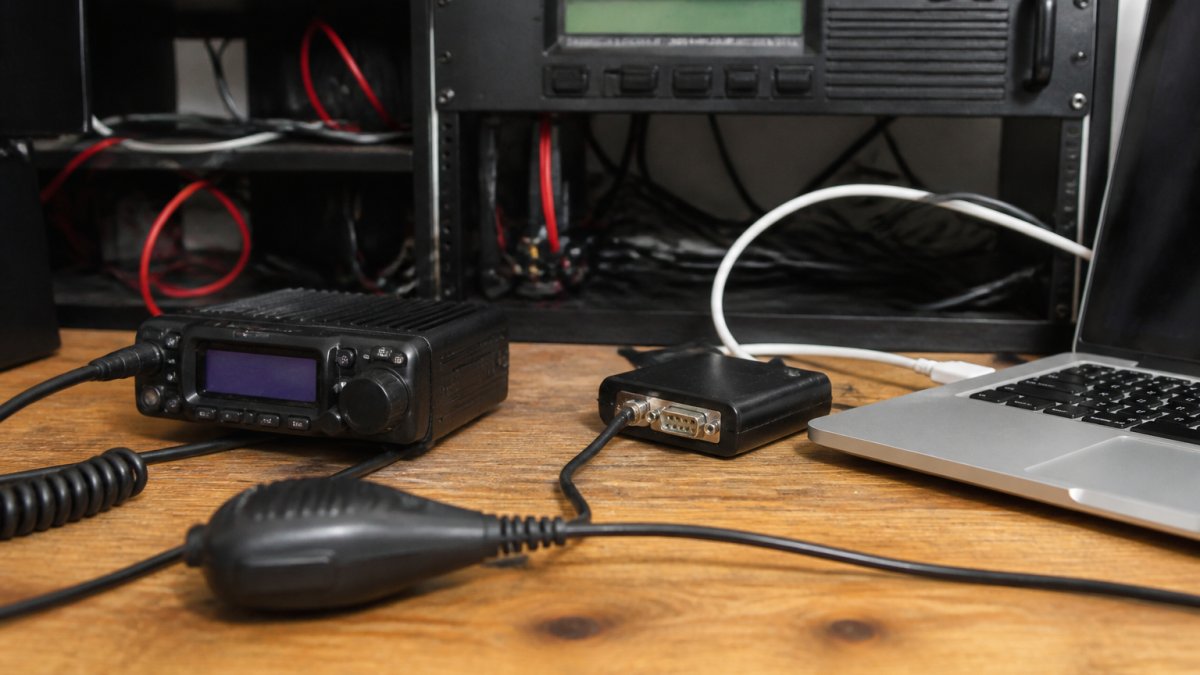
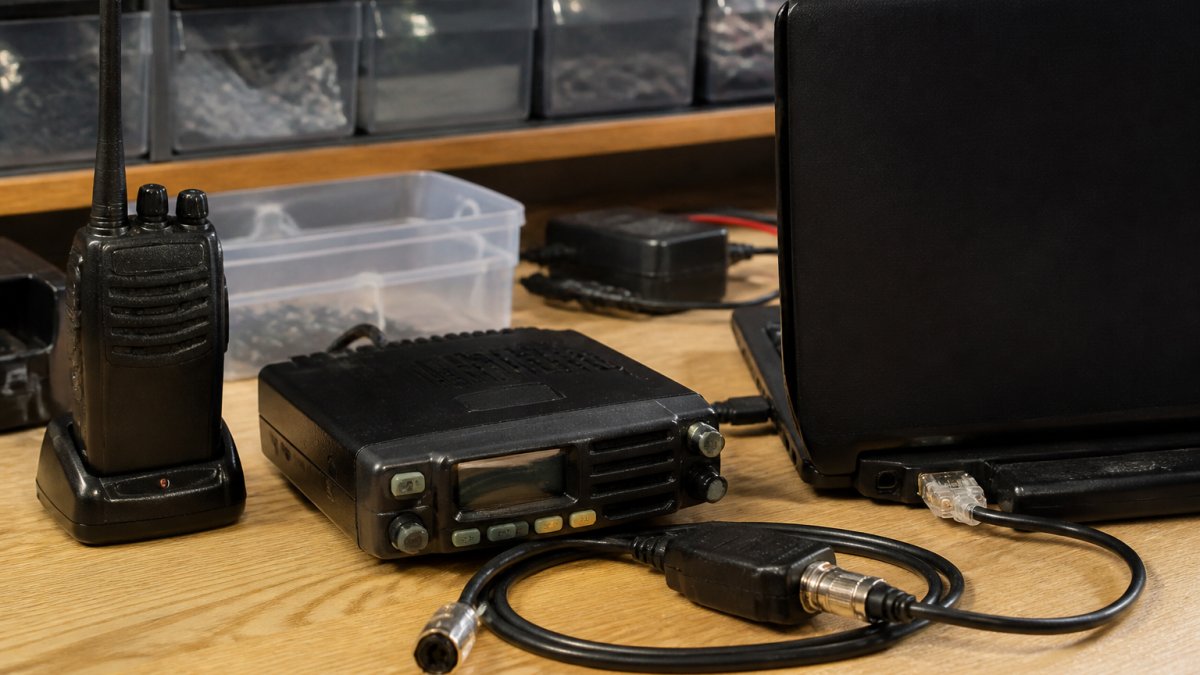
Kenwood radios connect via a programming cable with a radio connector on one end and USB on the other. You need a cable designed for your specific model or a multi-model cable that supports it. Quality matters, look for cables with FTDI chipsets, which are reliable and widely supported. Many cheap cables use counterfeit chips that fail frequently. RT Systems, Inc. supplies high-quality cables with genuine FTDI chipsets that work reliably with modern and older systems.
Installing virtual COM port drivers
Your programming cable needs a virtual COM port driver so Windows recognizes it as a serial port. Install the official FTDI driver: visit the FTDI website, download the latest Virtual COM Port driver for your Windows version, run the installer, and restart. Plug in the cable and check Device Manager to confirm the COM port is recognized. Your programming software will need to know which COM port your cable uses (usually COM3 or COM4).
Step-by-Step: How to Program a Kenwood TK-3230 and Similar Models
This section covers programming a Kenwood TK-3230, representing a typical older Kenwood radio. The steps work for most conventional Kenwood models.
What you'll need before starting
Gather: your Kenwood radio (fully charged), programming cable with FTDI chipset, programming software, virtual COM port driver, a list of frequencies, and your radio's model number and firmware version. Verifying these technical prerequisites ensures your device is ready for operation, much like the careful attention required when restoring vintage radio hardware to its original acoustic clarity.
Connecting your radio and reading settings
Plug the cable into your computer's USB port. Launch your programming software and select your radio model and COM port from the dropdown lists. Plug the cable into your radio's programming port (usually on the back or bottom). Click "Read" to download all current settings (10-30 seconds).
Entering frequencies and channel configuration
Once you've read your radio's settings, edit them in the table format. Each row is one channel with columns for channel number, frequency (transmit and receive), channel name, tone codes (CTCSS or DCS), and power level. Enter frequencies carefully, transmit frequency is what your radio sends on, receive frequency is what it listens for. For repeaters these differ; for simplex they're the same. Add descriptive channel names. Set power level (use low power to save battery unless you need extra range). Enter CTCSS or DCS tones if your repeater requires them.
Writing settings back to the radio
Click "Write" to upload your settings to the radio (30-60 seconds). Do not unplug the cable during this process. When done, you'll see a confirmation message. Power cycle your radio to activate the new settings. Test your new frequencies by transmitting on one programmed channel and listening for a response.
Programming Different Radios to the Same Frequency
Many radio enthusiasts own multiple radios from different manufacturers. Programming them all to the same frequency is useful for club events or travel.
Interoperability across Kenwood models
Different Kenwood models can communicate if programmed to the same frequency. The key is frequency matching, both radios must transmit and receive on identical frequencies. Even a 0.01 MHz difference prevents communication. Most Kenwood radios support standard amateur radio frequencies: VHF radios use 144-148 MHz, UHF radios use 420-450 MHz.
Matching VHF and UHF settings
VHF radios and UHF radios cannot talk directly, they operate on different bands. For direct communication, both radios must be the same type. However, both can use the same repeater if it has both VHF and UHF inputs. Channel spacing also matters: older radios use 25 kHz, newer ones use 12.5 kHz or 6.25 kHz. Mismatched spacing causes poor audio quality. Program all radios with the same spacing.
| Setting | VHF Radios | UHF Radios | Both Types |
|---|---|---|---|
| Frequency Range | 144-148 MHz | 420-450 MHz | Different bands |
| Channel Spacing | 25 kHz (older) | 25 kHz (older) | Match within band |
| Repeater Use | Yes | Yes | Requires dual-band repeater |
| Direct Communication | Yes (VHF to VHF) | Yes (UHF to UHF) | Not possible |
Troubleshooting Common Programming Issues
Even with the right equipment, problems sometimes occur. Here's how to fix the most common issues.
Connection and driver problems
The most frequent issue is the cable not connecting. Test the connection: plug the cable into your computer, open Device Manager, and look under "Ports (COM & LPT)" for your cable listed as a COM port. If you don't see it, download and install the FTDI Virtual COM Port driver from the manufacturer's website. If the driver is installed but the cable still doesn't work, try a different USB port.
Software compatibility with Windows 11
Older programming software sometimes has trouble on Windows 11. The software may crash or fail to recognize your radio.
Try compatibility mode:
- Right-click the software's .exe file
- Select "Properties"
- Click the "Compatibility" tab
- Check "Run this program in compatibility mode for:"
- Select "Windows 7" or "Windows 10"
- Click "Apply" and "OK"
Restart the software. It should work better in compatibility mode.
If it still fails, you may need third-party software that's designed for modern Windows systems. RT Systems, Inc. offers programming software built for modern Windows systems with no compatibility issues.
Backup and recovery practices
Before you reprogram your radio, back up your current settings. This protects you if something goes wrong.
Most programming software includes a backup feature. After you read your radio's settings, save the file to your computer:
- Click "File" → "Save"
- Choose a location and filename
- Save it as a .csv or .dat file (depending on your software)
If your radio gets corrupted or you make a mistake, you can restore from this backup:
- Open the backup file in your software
- Click "Write" to upload the settings back to your radio
Keep backups of each radio. Store them in a folder labeled with the radio model and date. This makes it easy to restore if needed.
Legal and Licensing Considerations for Frequency Programming
Programming frequencies into your radio comes with legal responsibilities. You must follow federal regulations.
The Federal Communications Commission (FCC) regulates all radio frequencies in the United States.
Amateur radio operators (ham radio) have specific frequency allocations. Check the FCC amateur radio band allocations to confirm which frequencies your license permits.
Licensed business radios operate on frequencies assigned by the FCC.
Unlicensed frequencies like GMRS (General Mobile Radio Service) have specific rules. Check the FCC GMRS licensing requirements if you plan to use GMRS frequencies.
Programming a frequency into your radio doesn't give you the right to use it.
Illegal transmission can result in FCC fines up to $10,000 or more.
If you're unsure about a frequency, don't transmit on it.
Programming older Kenwood radios is straightforward once you understand the basics.
Frequently Asked Questions
Can you program old Kenwood radios with modern computers?
Yes, older Kenwood radios can be programmed using modern computers, but you may need legacy programming software and virtual COM port drivers. Many older Kenwood models require DOS-based or Windows XP-era software to function. Installing the correct driver, typically an FTDI virtual COM port driver, allows your computer to communicate with the radio through a USB programming cable. Verify your specific radio model's compatibility before purchasing software or cables.
What cable do I need to program my Kenwood radio?
You need a programming cable specifically designed for your Kenwood radio model. Quality cables use FTDI chipsets to ensure reliable data transfer between your radio and computer. The connector type varies by model, some use 3.5mm jacks, others use proprietary connectors. Always confirm your radio's connector type before purchasing. A high-quality cable with proper drivers eliminates connection failures and data corruption that plague cheaper alternatives.
Can different Kenwood radios be programmed to the same frequency?
Yes, different Kenwood radio models can transmit and receive on the same frequency if they support that frequency band (VHF or UHF). However, interoperability depends on matching not just the frequency but also tone codes (CTCSS or DCS), bandwidth settings, and analog/digital mode compatibility. Programming software allows you to configure these parameters consistently across multiple radios. Always verify that all radios share the same frequency band and that tone codes match for reliable communication.
How do I find the right programming software for an older Kenwood radio?
Identify your radio's exact model number, then search for that model's programming software on the manufacturer's support page or trusted radio enthusiast forums. Older Kenwood models may require legacy software no longer on the main website. Verify the software version matches your radio's firmware version. If OEM software is unavailable or difficult to use, third-party programming solutions designed for your model can simplify the process. Always download from official sources to avoid compatibility issues or corrupted files.