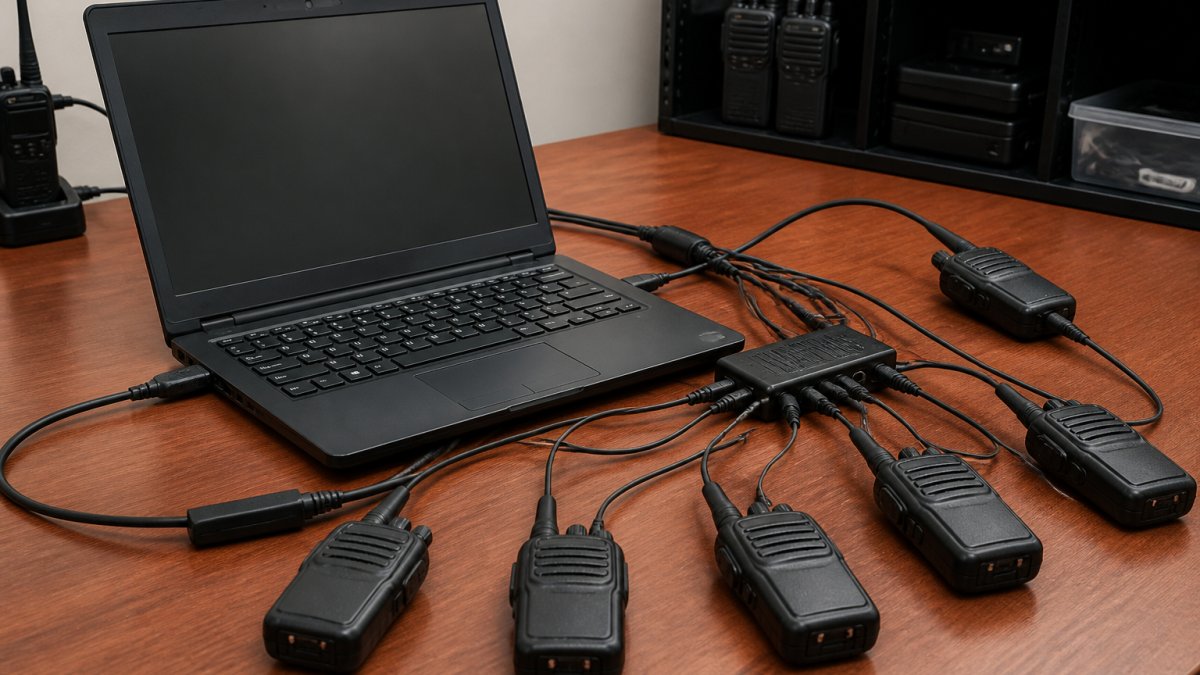
 how-to
Managing Multiple Radios With One Software
Table of Contents
- Why Managing Multiple Radios With One Software Matters
- Hardware Requirements and Interface Setup
- Configuring CAT Control Software for Ham Radio
- Best Radio Programming Software for Beginners
- Simultaneous Radio Tuning and Instance Management
- Troubleshooting Radio Software Connectivity
- Advanced Configuration: DAX, PTT, and Cross-Platform Setup
- Frequently Asked Questions
Last Updated: October 4, 2026
Why Managing Multiple Radios With One Software Matters
Managing multiple radios with one software is no longer a luxury, it's essential for serious radio enthusiasts. The global Software Defined Radio market was valued at USD 23.52 billion in 2026, with projections indicating growth to USD 36.80 billion by 2033, according to MarketsandMarkets market analysis.
At RT Systems, Inc., we've worked with radio enthusiasts for over 20 years. We know the pain points. You buy a new radio. The manufacturer's software is clunky. You buy another radio. Now you're managing two separate programs, two different interfaces, two sets of memories.
A single software platform consolidates your entire radio management workflow. One interface. One frequency database. This approach improves both functionality and performance in wireless systems, according to Association for Computing Machinery research on multi-radio platforms.
The result: faster setup, fewer mistakes, and genuine control over your radio environment.
Hardware Requirements and Interface Setup
Before software can manage multiple radios, your hardware must be ready. The right cables and interfaces determine whether your system works reliably or fails unpredictably.
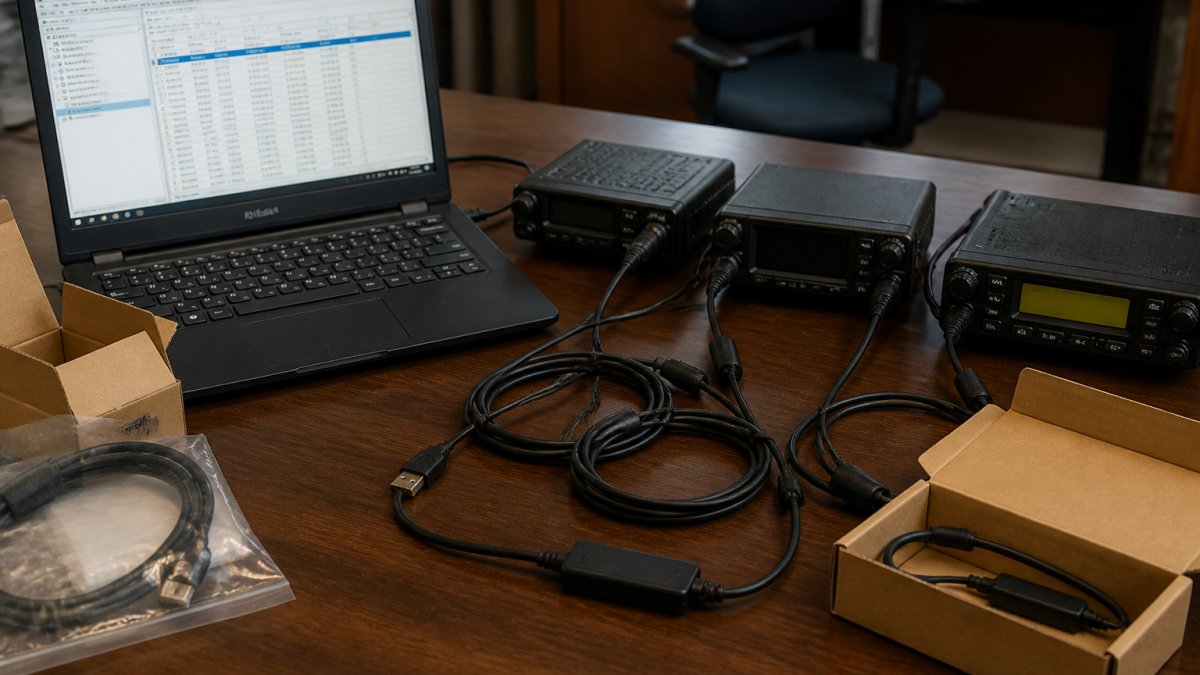
USB Interfaces and Virtual COM Ports
Your computer communicates with radios through USB connections. Each radio needs a dedicated interface cable with proper chipset support. FTDI chipsets are the industry standard for reliable data transfer.
Here's what matters: cheap cables often use inferior chipsets. They drop data. They disconnect randomly. Your memories get corrupted. You waste hours troubleshooting. Quality cables with FTDI chipsets ensure stable connections every time.
Setting up virtual COM ports correctly prevents conflicts:
- Install the correct FTDI drivers for your operating system
- Connect only one radio cable at a time during initial setup
- Check Device Manager to confirm the COM port assignment
- Note the COM port number (COM3, COM5, etc.) for software configuration
- Test the connection before loading memories into your radio
Virtual COM port mapping is where most problems start. If Windows assigns the wrong port number, your software won't find your radio. If two cables try to use the same port, both fail.
Antenna Systems and Signal Routing
Your antenna system affects how well your radios receive and transmit. Impedance matching is critical. A 50-ohm antenna connected to a 50-ohm radio through proper cabling delivers maximum signal strength. Mismatches cause signal loss and poor performance.
When managing multiple radios, antenna routing becomes complex:
- Use separate antennas for different frequency bands when possible
- Route VHF and HF antennas to different connectors on your radio
- Avoid long cable runs that introduce signal loss
- Label all connections clearly to prevent mistakes
- Test antenna connections before programming frequencies
Signal routing software features help here. Some platforms let you assign specific frequencies to specific antennas. This automation reduces manual errors and optimizes your signal path.
Configuring CAT Control Software for Ham Radio
CAT stands for Computer Aided Transceiver control. It's the protocol that lets your computer command your radio. When you select a frequency in software, CAT sends that instruction to your radio. The radio responds by tuning to that frequency.
Understanding CAT and Transceiver Control
CAT control is the backbone of managing multiple radios with one software. Without it, you can only program memories offline. With it, you control your radios in real time from your computer.
Every transceiver speaks CAT in its own dialect. Yaesu radios use one command set. Kenwood uses another. Icom uses a third. Good software supports multiple dialects so you can control different radio brands from one interface.
Real-world example: A radio club needs to coordinate across three different radio models during an emergency net. One operator manages frequency selection for all three from a single screen. CAT control makes this seamless.
Setting Baud Rate and Port Mapping
Baud rate is the speed at which data travels between your computer and radio. Common rates are 4800, 9600, and 19200 bits per second. Your radio's manual specifies the correct rate. If you set the wrong baud rate, communication fails.
Port mapping connects your software to the correct virtual COM port. This step trips up beginners:
- Open your radio programming software
- Navigate to Settings or Preferences
- Find the COM port configuration menu
- Select the correct COM port from the dropdown
- Set the baud rate to match your radio's specification
- Click Test or Verify to confirm the connection
- If the test fails, check Device Manager and try a different COM port
Frequency management and channel organization become possible only after CAT control works. Once your software can talk to your radio, you can organize hundreds of frequencies into logical groups.
Best Radio Programming Software for Beginners
Choosing the right software matters. Bad software wastes weeks. Good software saves you hours every week.
Key Features to Look For
Look for software that handles your radio brand. Check the compatibility list before buying. Some platforms support dozens of radio models. Others support only a few.
User interface matters more than you'd think. Confusing menus mean slower work. Clear layouts mean faster programming. Test the software with a trial if available.
Reliable data transfer prevents memory corruption. Software that validates every byte before writing to your radio catches errors before they happen. This single feature saves countless hours of troubleshooting.
RT Systems, Inc. software is built specifically for radio enthusiasts who value precision. Our interface simplifies complex radio settings. Our cables use quality FTDI chipsets. Our support team answers questions via phone and email.
Frequency Management and Channel Organization
Managing hundreds of frequencies across multiple radios requires organization. Good software lets you:
- Import frequency lists from text files or databases
- Sort frequencies by band, mode, or repeater group
- Create custom channel groups for different purposes
- Search frequencies by name or number
- Export organized memories back to your radios
- Bulk edit multiple channels simultaneously
Frequency databases save enormous amounts of time. Instead of manually entering every repeater in your region, you import a pre-built list. Software handles the details. You focus on organizing what matters.
Simultaneous Radio Tuning and Instance Management
This is where managing multiple radios with one software gets powerful. You can tune different frequencies on different radios at the same time.
Hardware vs. Software-Defined Switching
Two approaches exist: hardware switching and software-defined management. Understanding the difference matters.
Hardware switching uses an RF switch to select one radio at a time. You flip a physical switch or use software to trigger it. Only one radio receives signal at any moment.
Software-defined switching manages multiple radios simultaneously through software control. Each radio tunes independently. Each maintains its own frequency and settings. This approach requires more sophisticated hardware but delivers superior flexibility.
The choice depends on your use case. If you operate one radio at a time, hardware switching works fine. According to Insight SiP technical documentation, RF switching remains common in multi-radio setups to avoid signal interference complexity.
Managing Multiple Software Instances
Running multiple instances of the same software lets you control different radios independently. Instance management prevents conflicts:
- Open separate software windows for each radio
- Assign each instance to a different COM port
- Configure CAT control parameters for each radio separately
- Monitor all radios from your desktop simultaneously
- Switch between instances without restarting software
This approach works best when your software supports multiple simultaneous connections. Some platforms limit you to one active connection. Others let you run truly parallel operations.
Latency becomes important here. When you change a frequency in software, how long until your radio actually tunes? Low latency means responsive control. High latency means delays that disrupt your workflow. Quality software minimizes latency through efficient code and proper hardware drivers.
Troubleshooting Radio Software Connectivity
Problems happen. When they do, systematic troubleshooting saves time.
Resolving COM Port Conflicts
COM port conflicts are the most common connectivity problem. Two applications try to use the same port. Both fail.
Check Device Manager to see all active COM ports:
- Right-click Start menu and select Device Manager
- Expand Ports (COM & LPT)
- Note all COM ports listed
- Identify which port your radio cable uses
- Close any other applications using that port
- Restart your radio programming software
- Test the connection
If Device Manager shows no COM ports, your drivers aren't installed. Download the FTDI driver package from the cable manufacturer's website. Install it. Reconnect your cable. Windows should recognize it immediately.
Latency and Resource Management
Latency is the delay between sending a command and receiving a response. High latency means your software feels sluggish. Your radio takes seconds to tune after you click a frequency.
Resource management affects latency. When your computer is busy with other tasks, radio control suffers. Close unnecessary applications before operating:
- Close web browsers with many tabs
- Disable background updates and antivirus scans
- Close email and messaging applications
- Dedicate your computer's resources to radio control
USB hub quality matters too. Powered USB hubs provide stable power and reliable data transfer. Unpowered hubs can cause intermittent disconnections and data corruption.
Advanced Configuration: DAX, PTT, and Cross-Platform Setup
Advanced features unlock sophisticated workflows. DAX and PTT automation transform how you operate.
Digital Audio Exchange (DAX) Configuration
DAX routes audio between your radio and software. Instead of running cables from your radio to a sound card, DAX sends audio digitally through the USB connection.
Setting up DAX requires careful attention:
- Install your radio manufacturer's DAX drivers
- Configure audio input and output in your software
- Set your computer's default audio device to DAX
- Test audio levels before operating on frequency
- Adjust software gain to prevent distortion
- Monitor audio quality during actual operation
DAX simplifies cable management. One USB cable carries both control data and audio. Your desk stays clean. Your setup becomes more portable.
Push-to-Talk (PTT) Automation and Repeater Management
PTT automation triggers your radio to transmit when you activate a control in software. This feature is essential for digital modes and repeater operation.
Repeater management software maintains lists of local repeaters with their offsets, tones, and access requirements. When you select a repeater from the list, software automatically configures your radio:
- Sets the correct frequency
- Programs the proper offset
- Loads the required tone
- Configures any special settings
This automation eliminates manual configuration errors. You select a repeater. Software handles everything else. You're ready to transmit.
Cross-platform compatibility matters for flexibility. Software that runs on Windows, Mac, and Linux lets you work from any computer. You're not locked into one operating system. Your setup remains portable and adaptable.
Managing multiple radios with one software transforms your radio operation from frustrating to fluid. The challenge is choosing the right combination of hardware, software, and configuration.
Frequently Asked Questions
What is CAT control and how does it help manage multiple radios?
CAT (Computer Aided Transceiver) control allows your computer to communicate directly with your radio's frequency settings, tuning, and mode selection through a serial connection. By using CAT-compatible software, you can manage multiple radios simultaneously without manually adjusting each one. This is especially useful when you're working with different radio brands or managing VHF and HF frequencies across several transceivers at once.
Can one computer control two different radio brands simultaneously?
Yes, with the right software and hardware setup. Software that supports multiple transceiver types through separate virtual COM port assignments can control different brands at the same time. You'll need compatible programming cables for each radio model and software that recognizes both brands' CAT protocols. This approach works well for managing a mixed radio fleet, though you should verify that your chosen software explicitly supports each specific model you plan to control.
How do I avoid port conflicts when using radio management software?
Port conflicts occur when multiple software instances or radio connections try to use the same COM port. Assign each radio to a unique virtual COM port by configuring your USB interface settings in Windows Device Manager. Document which physical cable connects to which COM port, and ensure your radio software is set to communicate only on its assigned port. If you're running multiple software applications simultaneously, verify that each one is configured for a different port number to prevent communication failures.
What's the difference between hardware and software-defined switching for multiple radios?
Hardware-defined switching uses an RF switch to physically select one radio at a time, avoiding complex signal interference issues but limiting simultaneous tuning. Software-defined switching allows your computer to manage multiple radios concurrently through virtual COM ports and CAT control, enabling you to monitor and adjust different frequencies and modes on separate transceivers without manual switching. Software switching is more flexible but requires careful attention to latency and resource management to avoid performance degradation.